

When the same featured image appears in posts where it doesn’t belong, the cause is almost always how the campaign handles images with the same file name. Different websites, or even the same one, often use names like image.jpg or thumbnail.jpg for completely different pictures.
When Use custom upload is enabled in the Options for images box of a campaign, the Professional add-on adds the option Determine what happens with duplicated image names under Advanced Options:
- Rename like WordPress standards (name-1) — every image is saved, adding
-1,-2… to the name if it already exists. - Always Overwrite — the new image replaces the previous file with the same name, so older posts also show the new picture.
- Always keep the first — if a file with the same name already exists, the image is not downloaded again and the existing file is used.
Always keep the first saves space and avoids downloading the same picture again, but if two different images share a name, every post will show the first one that was saved.
- Edit the campaign and go to the Options for images box.
- Under Advanced Options, in Determine what happens with duplicated image names, select Rename like WordPress standards (name-1).
- Click Update to save the campaign.
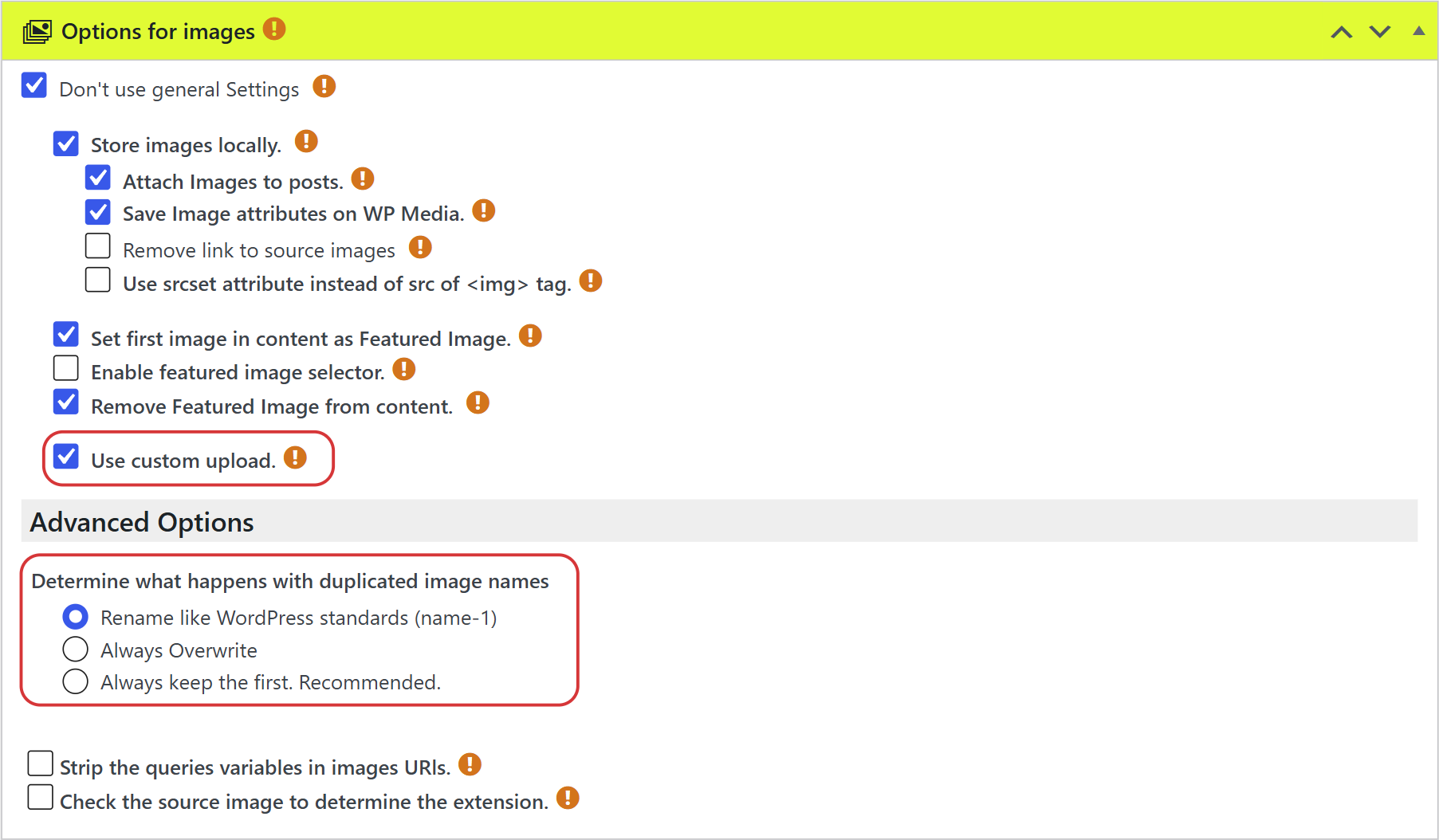
Another way is to uncheck Use custom upload. Then the images are saved with the WordPress functions, which always give a unique name to each file.
Note: The change applies to the posts created from then on. Posts that already show a wrong featured image must be fixed by hand or fetched again.