

The Facebook Fetcher add-on needs a Facebook app of your own: Facebook only answers requests made by a registered application. You create it once at developers.facebook.com/apps, and then use its ID and secret in WPeMatico.
Note: Meta changes these screens from time to time, so yours may look a bit different. Your site must use HTTPS.
Go to developers.facebook.com/apps and click Create App. The wizard has five steps.
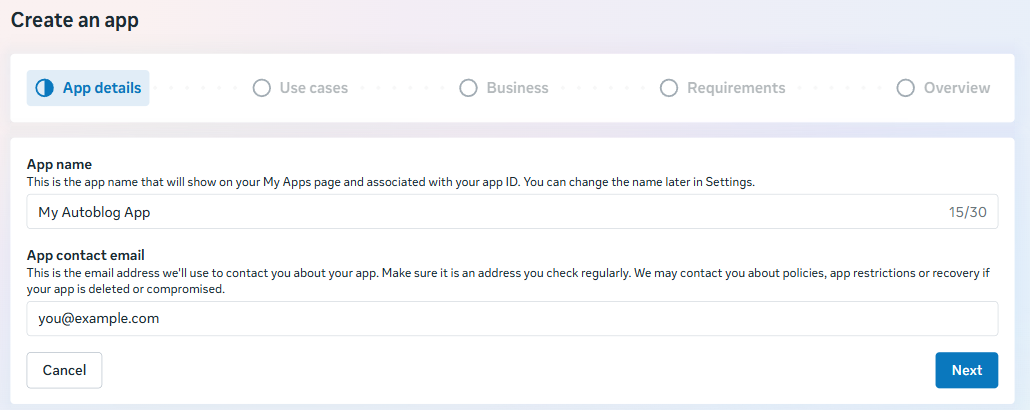
App details. Type a name for the app and your contact email, and click Next.
Use cases. Choose the one that matches the app type you will select in WPeMatico:
- To fetch the Facebook pages you manage (app type Pages (Business) in WPeMatico), choose Manage everything on your Page. You find it under Content management.
- To fetch the posts of your own profile (app type Profile (Consumer)), choose Authenticate and request data from users with Facebook Login.
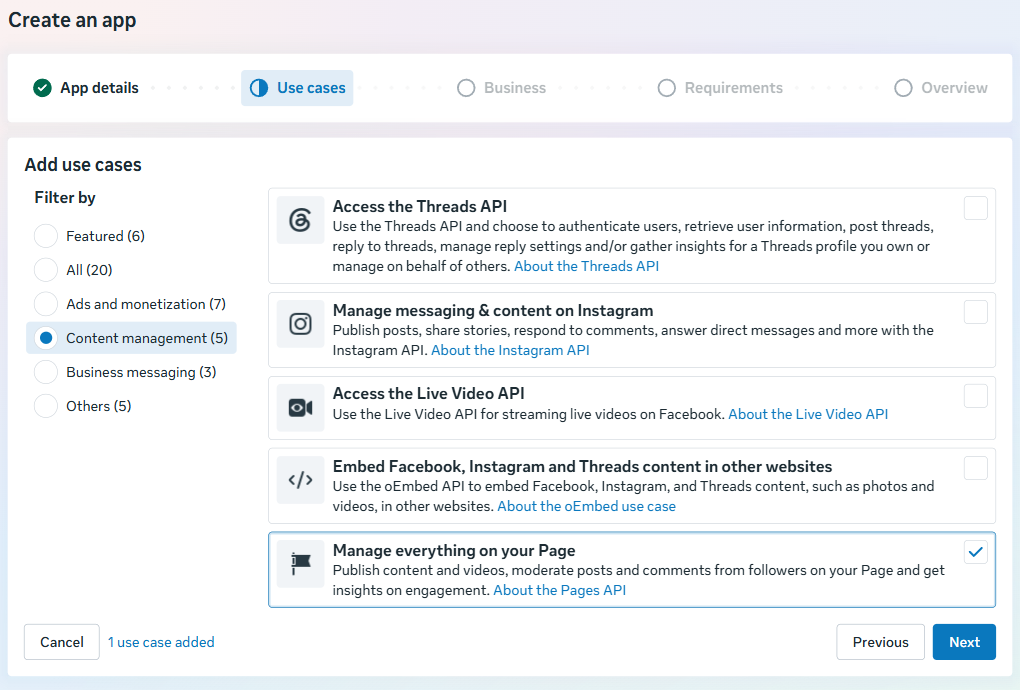
Note: Meta doesn’t allow both use cases in the same app. If you need pages and your profile, create one app for each.
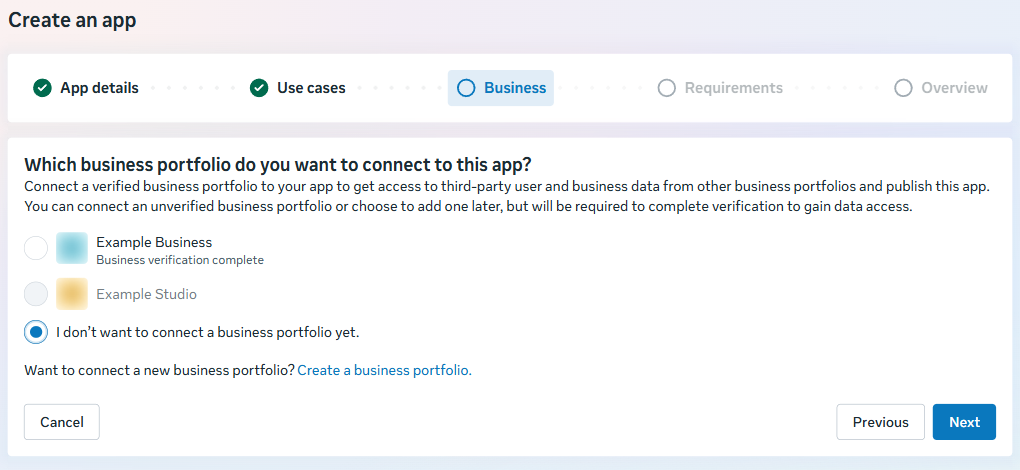
Business. Connect your business portfolio, or choose I don’t want to connect a business portfolio yet. You can connect it later.
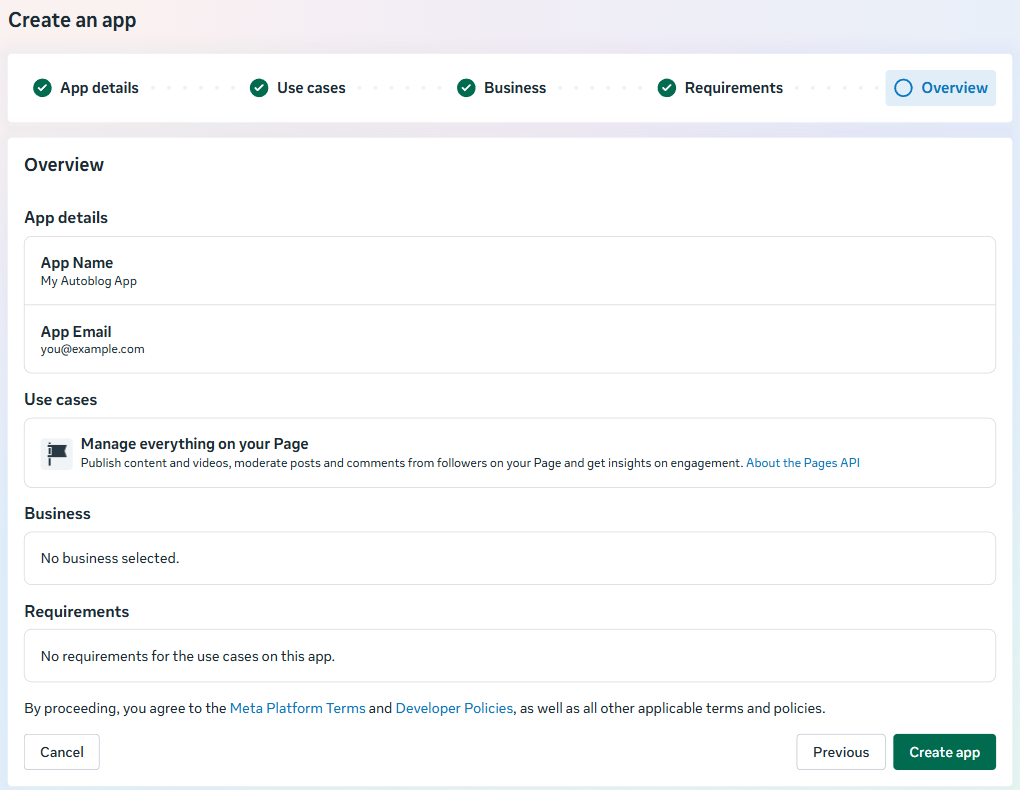
Requirements and Overview. Check the summary and click Create app.
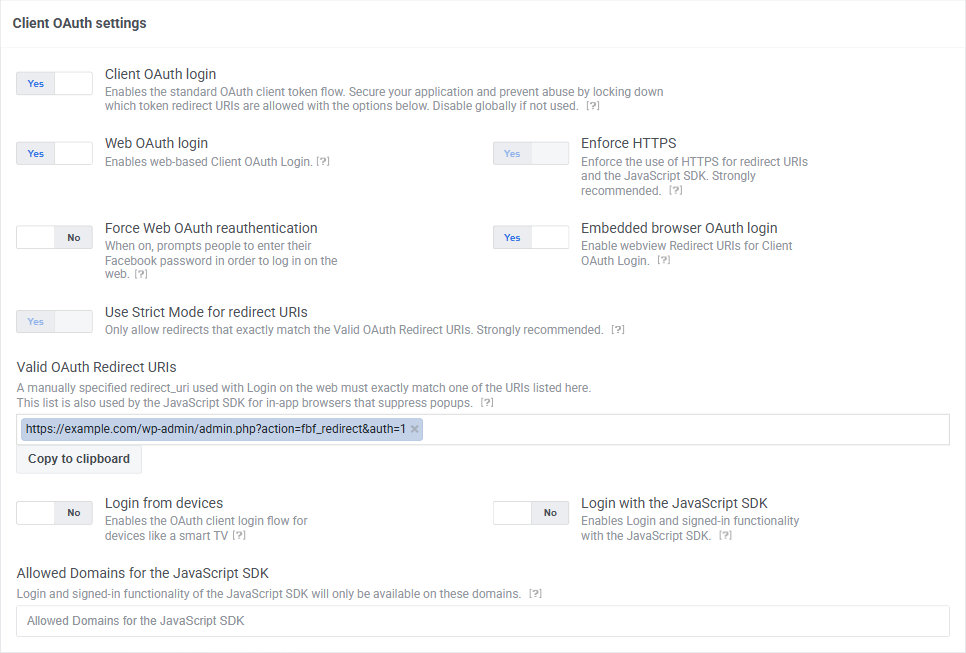
- Copy the redirect URI that WPeMatico shows in WPeMatico → Settings → Facebook Fetcher. It looks like
https://example.com/wp-admin/admin.php?action=fbf_redirect&auth=1. - In your app, open the login settings:
- For a Pages app: Facebook Login for Business → Settings.
- For a Profile app: Use cases, click Customize in the Facebook Login use case and open Settings.
- Under Client OAuth settings, check that Client OAuth login and Web OAuth login are on, paste the URI in Valid OAuth Redirect URIs and click Save Changes.
Go to App settings → Basic. There you find the App ID and the App secret: click Show to see the secret. Fill in the Privacy policy URL, the Terms of Service URL, the User data deletion and the Category too, and save.
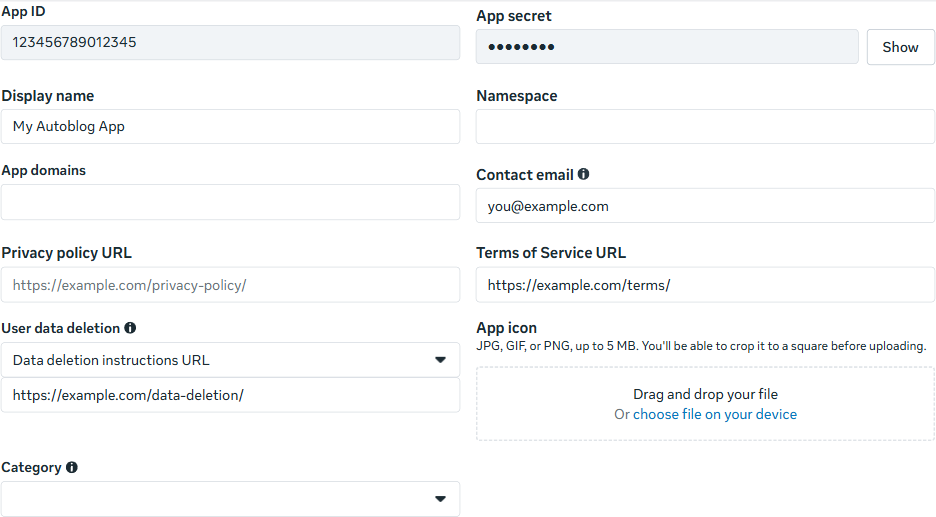
Now enter them in WPeMatico, choose the same app type and authenticate the app, as explained in Setup Facebook Fetcher.
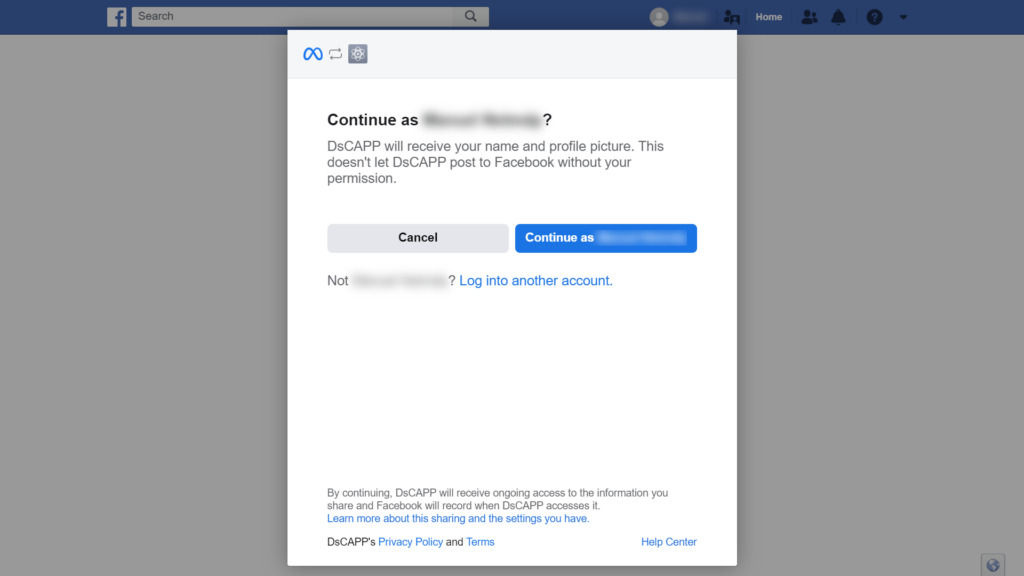
When you click Authenticate in WPeMatico, Facebook opens a window: continue with your account, choose the pages and accept the permissions.
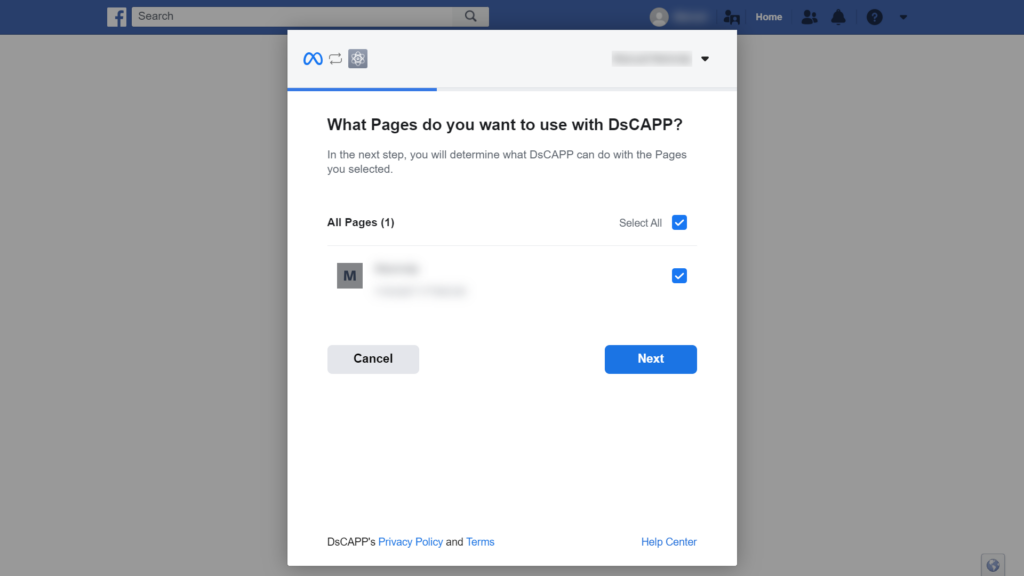
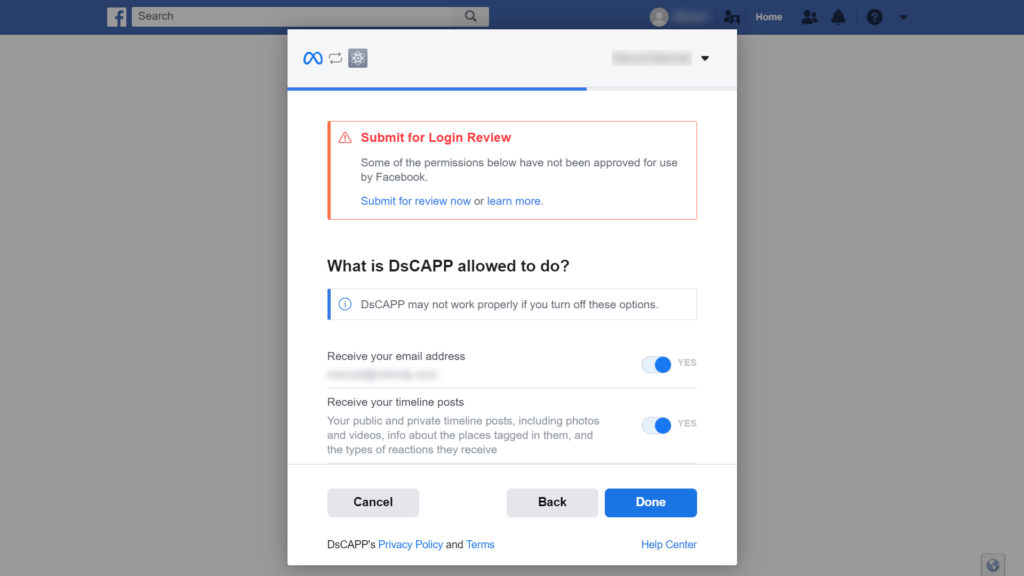
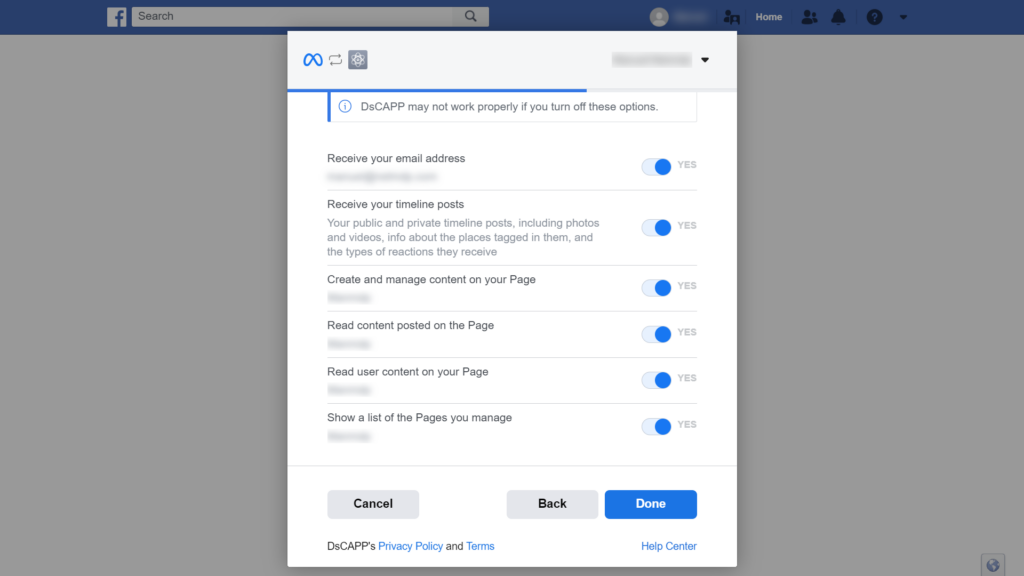
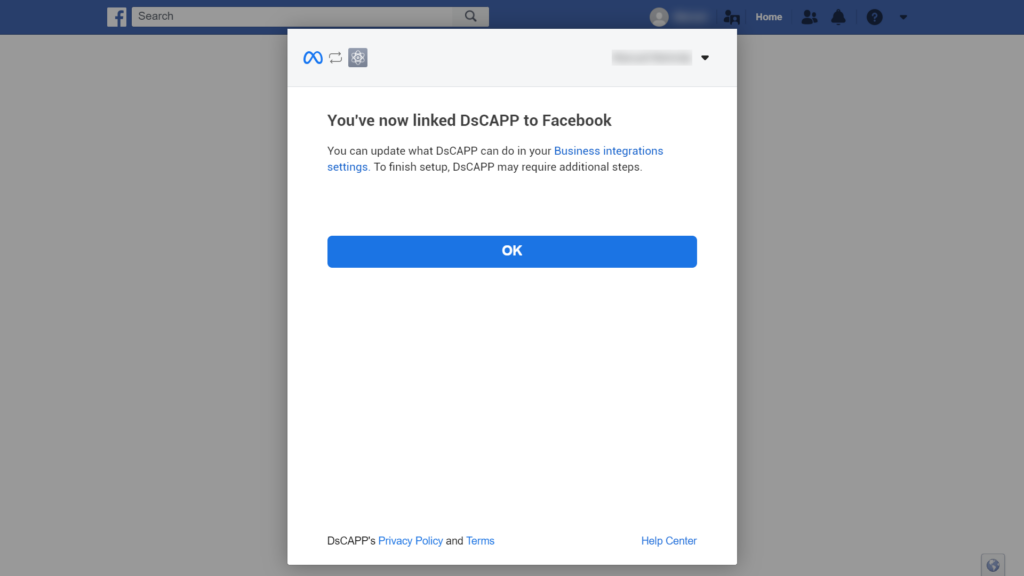
Click OK to finish. Your pages are now available in the campaigns.
While the app is in development, it reads the pages you manage or your own profile. To fetch public pages of other people, the app needs the Page Public Content Access feature, and Facebook must approve it in App Review: you describe how you use it and how a reviewer can test it, and then publish the app. The approval can take from one week to several months.