

WPeMatico runs your campaigns with the WordPress cron, the system that runs scheduled tasks. But the WordPress cron only works when someone visits your site: if your site has few visits, the campaigns may run late, and if it has many, the cron can slow it down.
An external cron solves it: a service of your hosting calls a WPeMatico address at the intervals you choose, no matter how many visits your site has.
Go to WPeMatico → Settings and, in the Cron and Scheduler Settings box, check Disable WPeMatico schedulings.
Below the option you’ll see the URL you must call from the external cron. We strongly recommend checking Set a password to access the external CRON: write a code or generate a random one, and it’s added to the URL, so nobody else can run your campaigns.
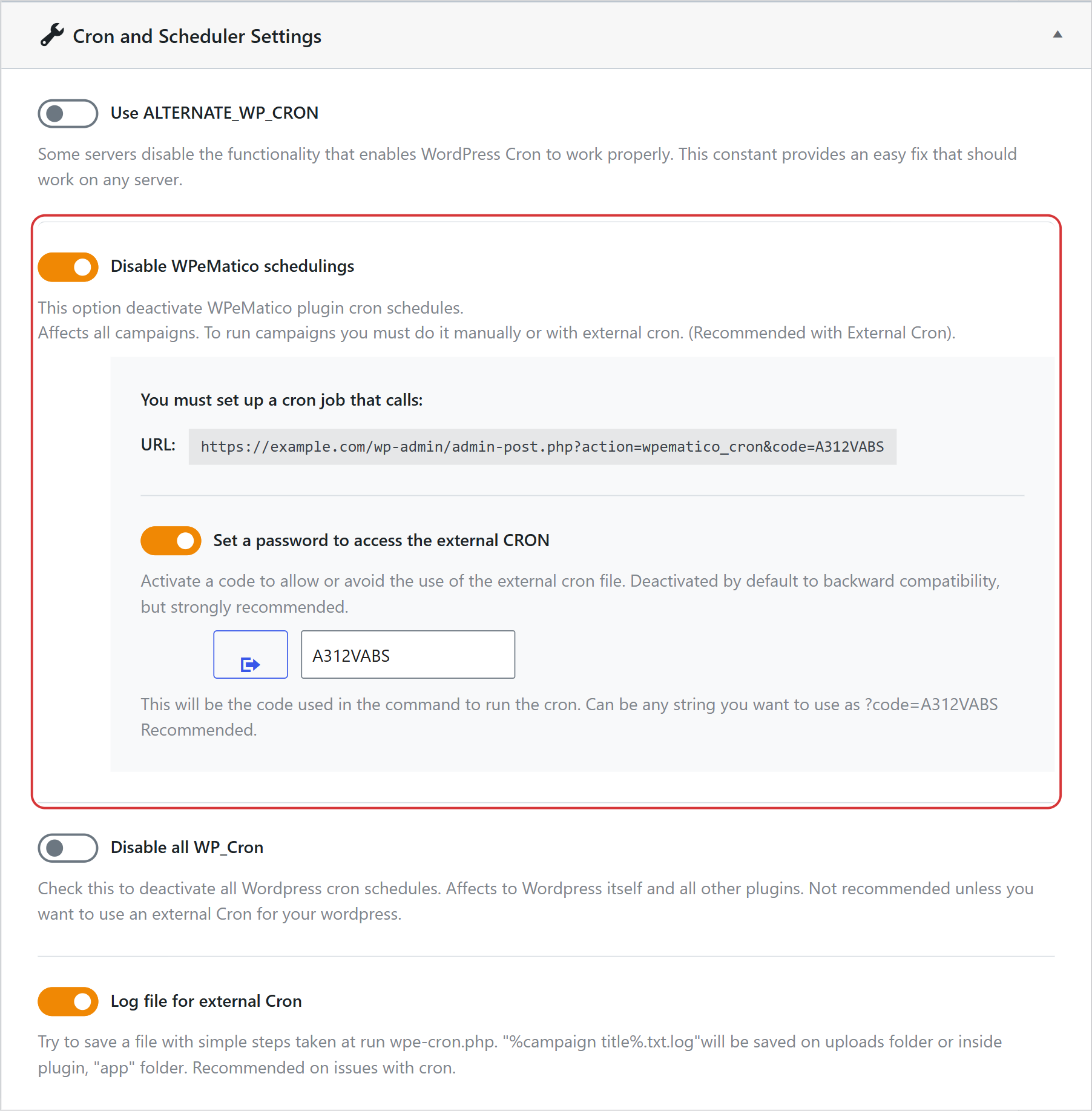
Check Log file for external Cron to save the steps of each run in a file named %campaign title%.txt.log in your uploads folder. Then click Save settings.
In your cPanel, open Cron Jobs, add a new cron job, choose how often it runs and, in the Command field, write the following, replacing the URL with the one WPeMatico shows for your site:
wget -q -O - "https://example.com/wp-admin/admin-post.php?action=wpematico_cron&code=PASSWORD" >/dev/null 2>&1
That’s it! The external cron runs the campaigns at the frequency you chose. Make sure the campaigns you want to run are active.
Note: Each campaign still follows its own schedule. The external cron only checks which campaigns are due, so set it to run at least as often as your most frequent campaign.