

The Random Rewrites of the Professional add-on replace some words of the imported content with a synonym chosen at random, so two posts made from the same source don’t read exactly the same.
Go to WPeMatico → Settings, open the Professional tab and turn on Enable “Random Rewrites” feature. Then save the settings.
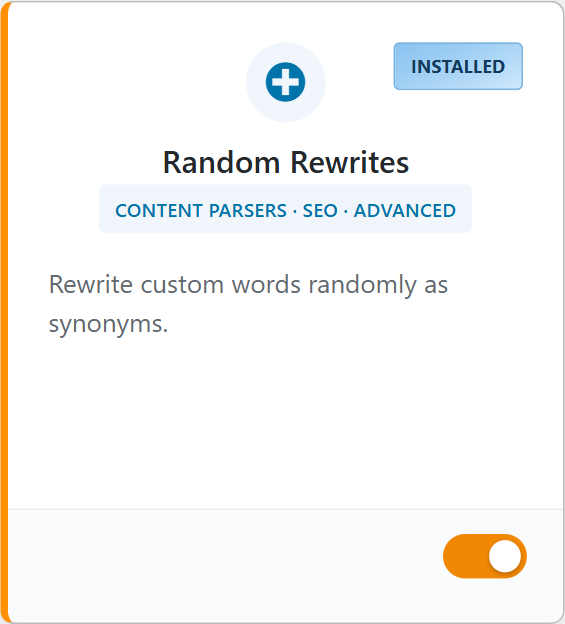
You can also turn it on from WPeMatico → Dashboard, with the switch of the Random Rewrites card:
In the same Professional tab, open Random Rewrites in the menu. In Words to rewrite, one group per line, write each group of words that can replace each other, separated by commas:
lady, woman, female, girl

big, large, huge
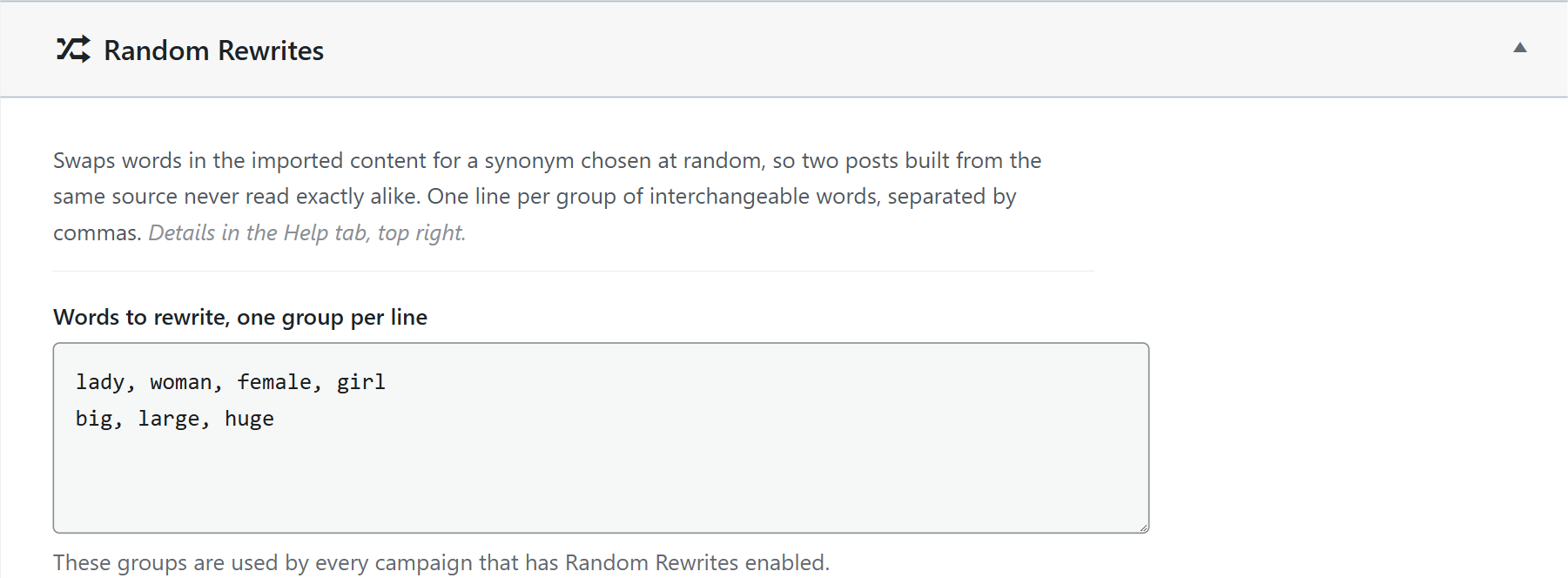
If the content has the word woman, it is replaced by lady, female or girl, chosen at random. These groups are used by every campaign that has Random Rewrites enabled.
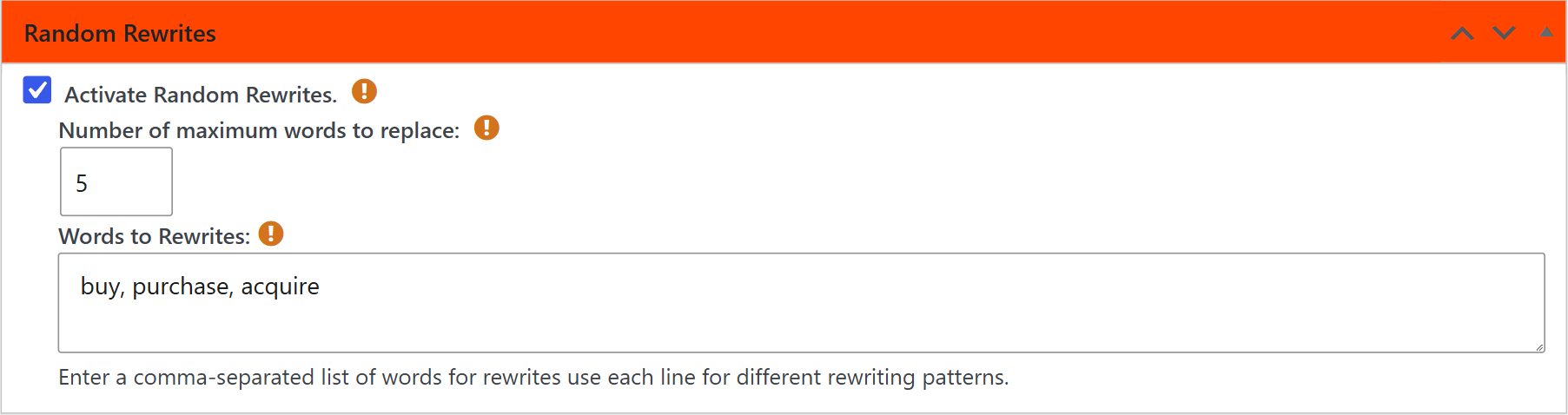
- Edit the campaign and check Activate Random Rewrites.
- In Number of maximum words to replace, set how many words can be changed in each post. If you leave it empty, up to 10 words are replaced.
- In Words to Rewrites, you can add more groups only for this campaign, one per line. They are used together with the groups of the Settings.
Note: The words are found as they are written, with the same uppercase and lowercase letters, and also inside longer words. For example, “car” also matches “cart”. Use words that are not part of other words.