

Some feeds include small images in their content: icons, buttons, logos or tracking pixels. The Image Filters of the Professional add-on remove from each post the images that are too small, by their width or height.
Go to WPeMatico → Settings, open the Professional tab, turn on Enable “Image Filters” feature and save the settings.
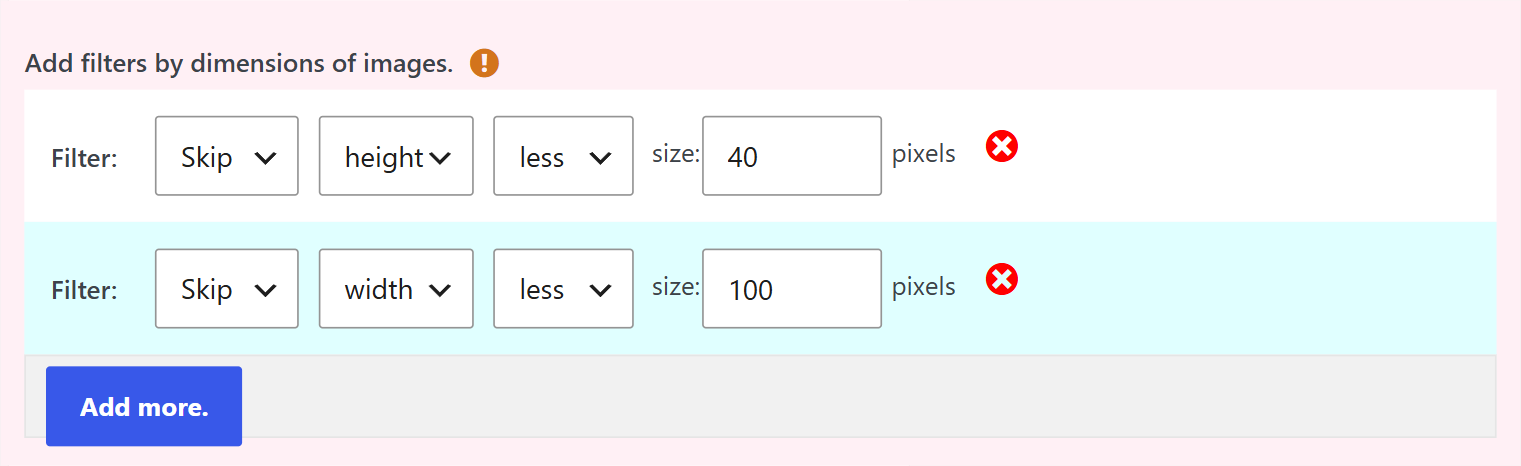
Edit the campaign and find Add filters by dimensions of images in the Options for images box. Each filter has four parts:
- Skip — removes the images that meet the condition.
- width or height — the dimension to check.
- more or less — the value or more, or the value or less.
- size — the value in pixels.
For example, Skip – height – less – 40 removes all the images that are 40 pixels high or less. Click Add more to add more filters, and Update to save the campaign.
Note: To know the size of each image, WPeMatico reads it from the source site. If it can’t read it, the image is removed too. Check the first posts after adding the filters.
In the same box, under Parsers for Featured image, Only allow first Featured image that meets the following filters has its own filters. They don’t remove images from the content: they choose which image becomes the featured image, for example the first one that is 600 pixels wide or more.