

This tutorial explains how to make WPeMatico set the featured image of every imported post automatically. The plugin takes the first image found in the content of each feed item, uploads it to your Media Library, attaches it to the new post and sets it as the post thumbnail.
This feature is included in the free version of WPeMatico. You can enable it globally for all campaigns or only for the campaigns that need it, and you can choose between storing the image on your site or linking it from its original URL.
Important: The feed must include images inside the content of its items (in <img> tags). If the feed only provides text, WPeMatico has nothing to work with and the post will be published without a featured image.
Go to WPeMatico → Dashboard and find the Featured Images card. Turn on its switch and the feature is enabled for every campaign that follows the general settings.
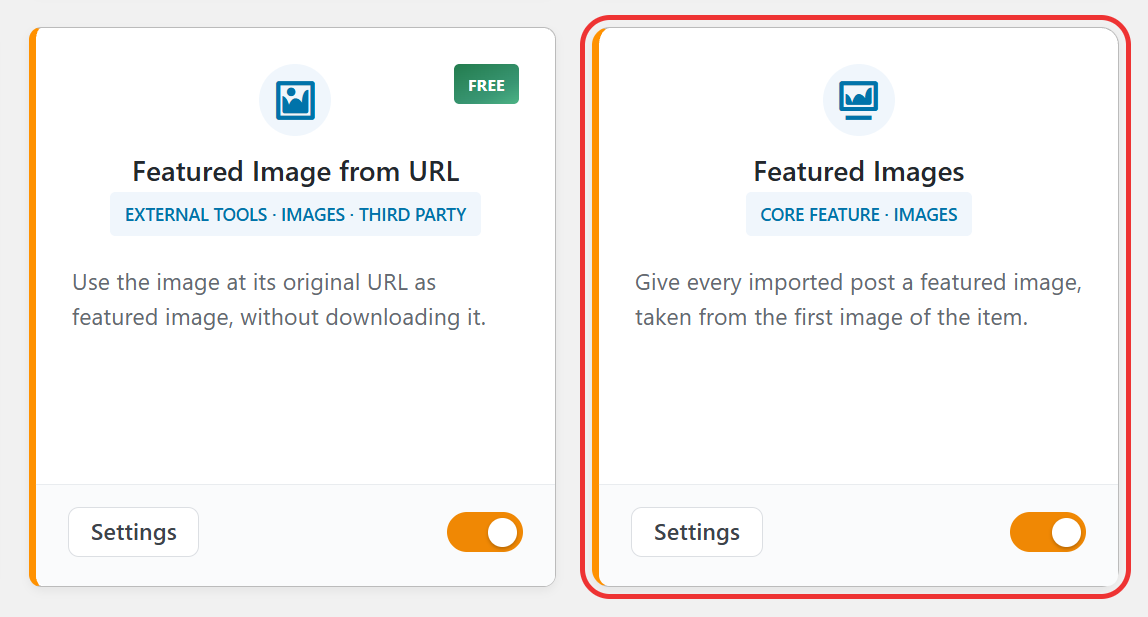
The Settings button of the card takes you to the Global Settings for Images box, where you will find the same option together with the rest of the image settings.
Go to WPeMatico → Settings and locate the Global Settings for Images box.
Turn on Set first image in content as Featured Image and click Save settings.
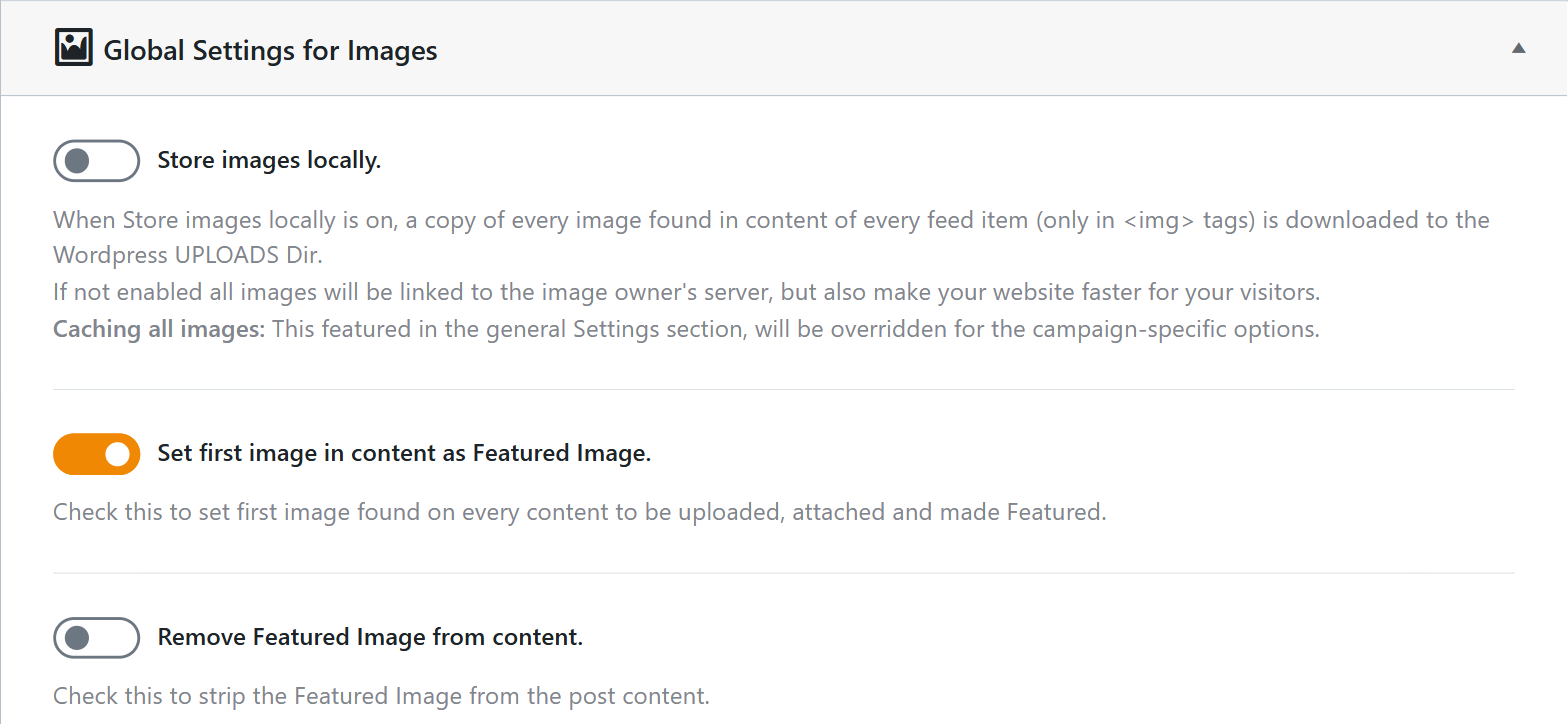
From now on, every campaign that follows the general settings will use the first image of each item as the featured image of the post.
Note: The featured image is uploaded to your Media Library even if Store images locally is disabled. That option only decides whether the rest of the images in the content are downloaded or left linked to the source site.
Edit the campaign and open the Options for images box.
Check Don’t use general Settings to unlock the campaign options, then check Set first image in content as Featured Image and save the campaign.
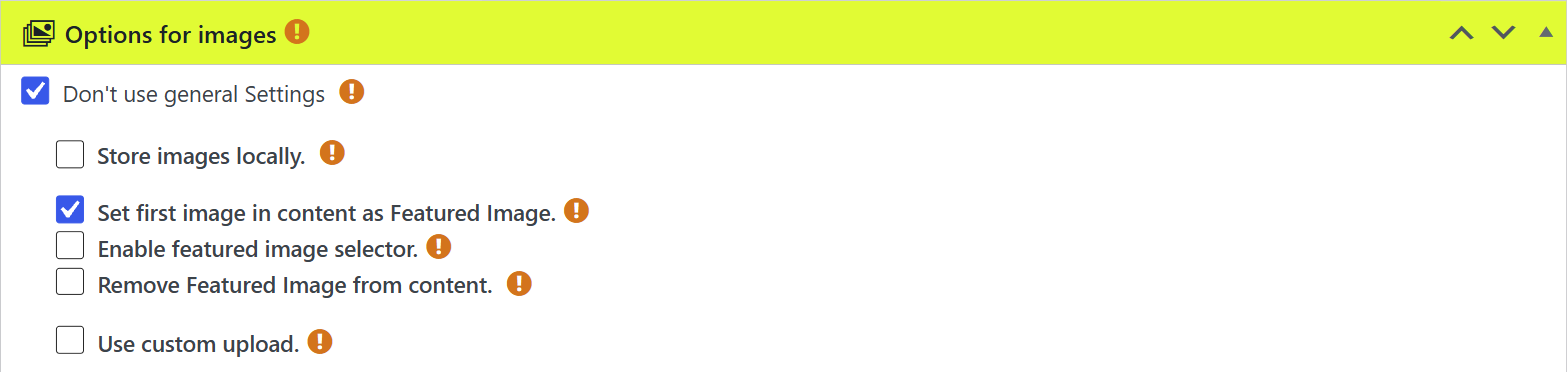
The options set here apply only to this campaign and take precedence over the global settings.
If the first image of the feed items is not the one you want (for example, an author avatar or a share button), check Enable featured image selector in the campaign options.
- Index to featured — Position of the image inside the content, starting at
0for the first image,1for the second, and so on. - If no exist index — What to do when an item has fewer images than the index: use the First image or the Last image found in the content.
Most themes display the featured image above the post. Since the same image is also part of the imported content, it may appear twice on the page.
To prevent this, enable Remove Featured Image from content, available both in the global settings and in the campaign options. WPeMatico will strip that image from the content and keep it only as the post thumbnail.
By default, WPeMatico downloads the featured image and keeps a copy in your Media Library. If you prefer not to store it on your server, for example to save disk space when you publish a large number of posts, you can use the free Featured Image from URL (FIFU) plugin. WPeMatico then saves only the URL of the original image, and FIFU displays it as the post thumbnail directly from the source server.
Install and activate FIFU from the WordPress repository. Then go to WPeMatico → Settings and turn on Use Featured Image from URL in the Global Settings for Images box.

You can also enable or disable it per campaign, in the Featured Image From URL section of the Options for images box. There you will find Use video link as featured if available as well: when the item contains a video, FIFU uses it as the featured media of the post instead of an image.

Note: This option works on the image chosen by Set first image in content as Featured Image, so keep that option enabled too. Until the FIFU plugin is installed and active, the option appears greyed out in WPeMatico.
- The feed has no images in the content: Many feeds only include a short summary without images. Open the feed URL in your browser and check whether the items contain
<img>tags. The Full Content addon can fetch the complete article, including its images, from the source page. - The option is enabled globally but the campaign overrides it: If Don’t use general Settings is checked in the campaign, the global setting is ignored. Enable the option inside the campaign as well.
- The image could not be downloaded: Check the campaign log for messages like Failed to obtain file or Save Featured image file failed. The source server may block external requests, or the image may have an extension that is not in the Allowed image extensions to upload list of the global settings. You can add extra extensions there, such as
svgorwebp, as long as WordPress allows those mime types. - The image comes as an enclosure or media tag: Some feeds attach images outside the content, in
<enclosure>or<media:content>tags. The Professional addon can read those tags and use them as featured image. It also handles image URLs with query variables, such asimage.jpg?resize=1024,512, with its Strip the queries variables in images URLs option.
- Use the
{image}tag in the campaign Post Template to place the featured image anywhere in the post content. - The Professional addon adds a default featured image for items without images, image filters by dimensions and an image renamer.
- The Full Content addon can take the featured image from the
og:imageor Twitter image meta tags of the source page, which usually point to the main picture of the article.