

When the content that the Full Content add-on gets is blank, wrong or incomplete, or when you want to add more parts of the source page to the post, you can tell the add-on exactly what to take with a config file for that domain.
- Open an article of the source site in your browser.
- Right-click on a paragraph of the content you want and choose Inspect.
- Look at the element that contains the whole article, usually a
<div>or an<article>, and write down its class or ID. For example:<div class="entry-content">.
Go to WPeMatico → Tools → Full Content, open the config file of the domain, or create it with New, and write the element in the body: line using XPath:
body: //div[@class='entry-content']
To take more than one part of the page, join them with |. For example, the header image and the text of the article:
body: //div[@class='post-header-image'] | //div[@class='entry-content']
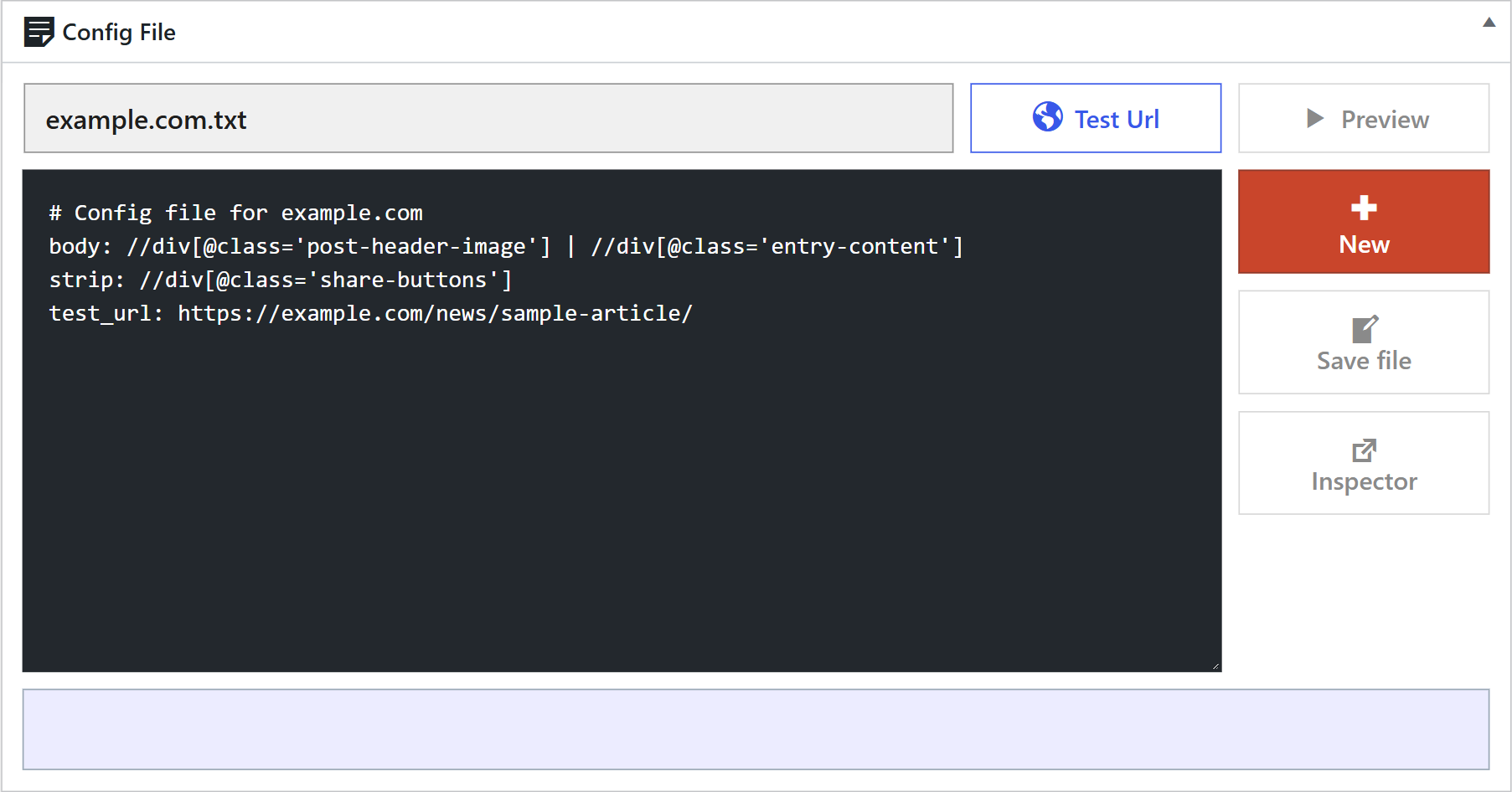
Click Test Url and paste the address of the article, or add it in a test_url: line, and click Preview to see the result. When it looks right, save the file. It works with all the posts that WPeMatico fetches from that domain.
If this is difficult for you, our premium support can create the config file for you.