

WPeMatico includes a debug log for developers: a file where you can save your own messages from any part of your code with the wpematico_log() function. It’s independent from the campaign logs and it’s useful to follow events or run tests while you develop add-ons or custom integrations.
Go to WPeMatico → Tools, open the System tab and click Danger Zone. In the Debug Mode box, check Enable WPeMatico Logs and save.
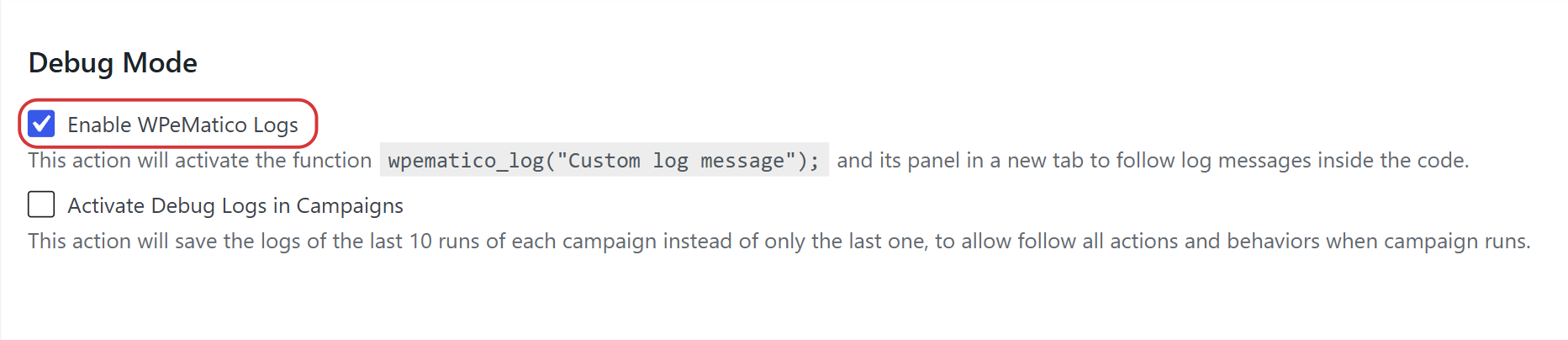
The same box has Activate Debug Logs in Campaigns, a different option that keeps the logs of the last 10 runs of each campaign instead of only the last one.
Call this function anywhere in your code, in your plugins, your theme or your custom functions:
wpematico_log( 'This is a custom debug message.' );
Each call adds a new line to the log with the date and time. It also works when the code runs in the background, for example during a campaign run.
Note: The function does nothing while Enable WPeMatico Logs is disabled, so you can leave the calls in your code.
When the debug log is enabled, a new Logs tab appears in WPeMatico → Tools. There you can read the messages and use the buttons Clear Log, Download Log and Copy to Clipboard.
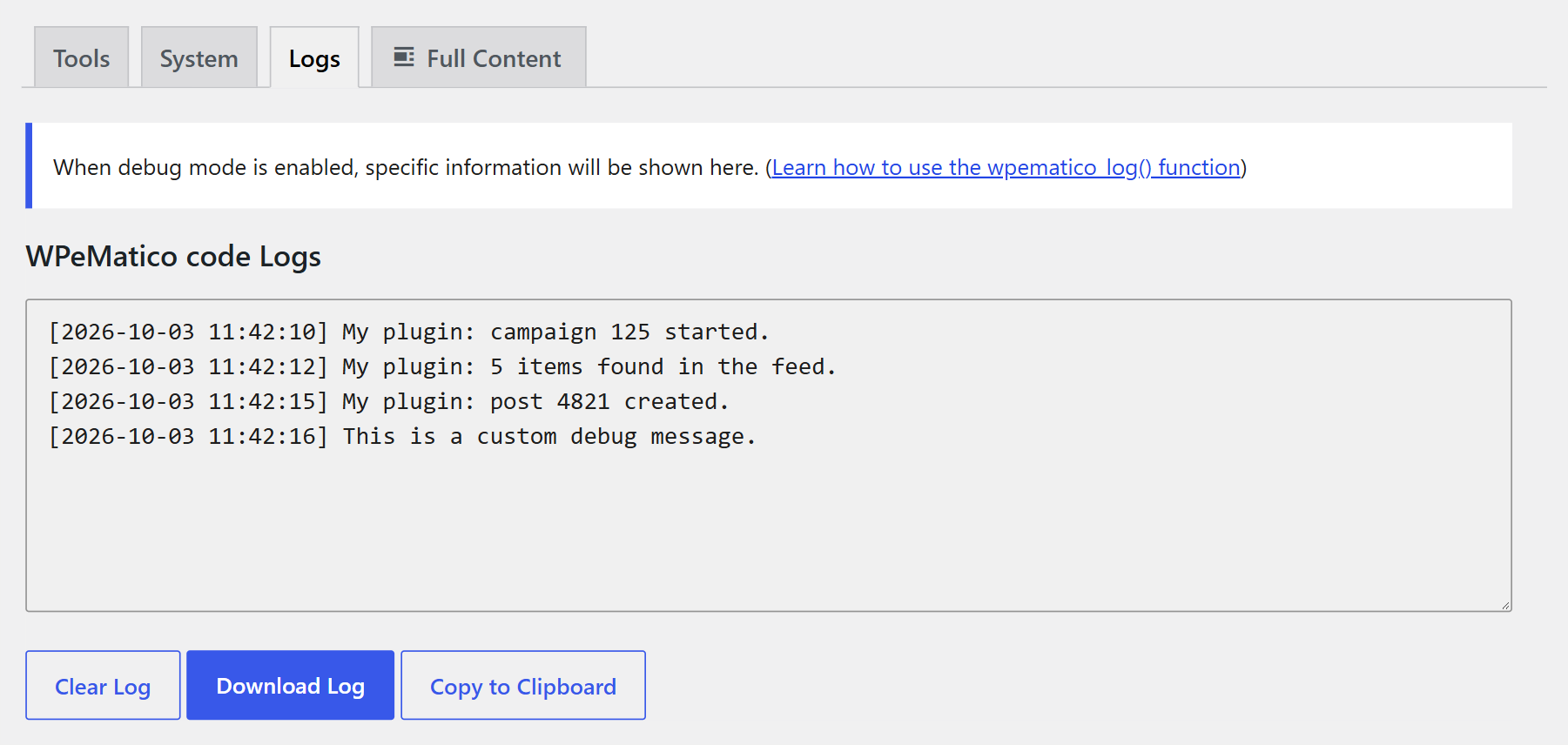
The log is saved in the wpematico folder inside your uploads folder, with a unique file name that is hard to guess. Even so, don’t log passwords or private data, and clear the log when you finish debugging.
The campaign logs record what each campaign does when it runs. The debug log only records the messages you write in your code, so they don’t mix. It’s ideal to:
- Debug custom functions while you develop WPeMatico add-ons or other integrations.
- Record key events or data from hooks and filters.
- Follow a process for a while without touching the campaign logs.