

This tutorial explains how to create a Vimeo Access Token and configure it in WPeMatico Professional to access Vimeo videos through the Vimeo API.
A personal access token allows WPeMatico to go beyond the limitations of the standard Vimeo feed, including accessing more videos, choosing different sorting options, and optionally retrieving your own private and unlisted videos.
Important: A Vimeo Access Token is sensitive information. Treat it like a password and never share it in screenshots, support tickets, forums, or other public places.
Go to Vimeo Developer Apps, sign in with your Vimeo account, and click Create an app.
Enter a name and description for the application. These are only used to identify the app, so you can use something simple such as WPeMatico and Send my Vimeo videos to my WordPress site.
When Vimeo asks whether other Vimeo accounts will have access to the application, select No. The application is intended only for your own Vimeo account and WPeMatico.
Accept the agreement and click Create App.
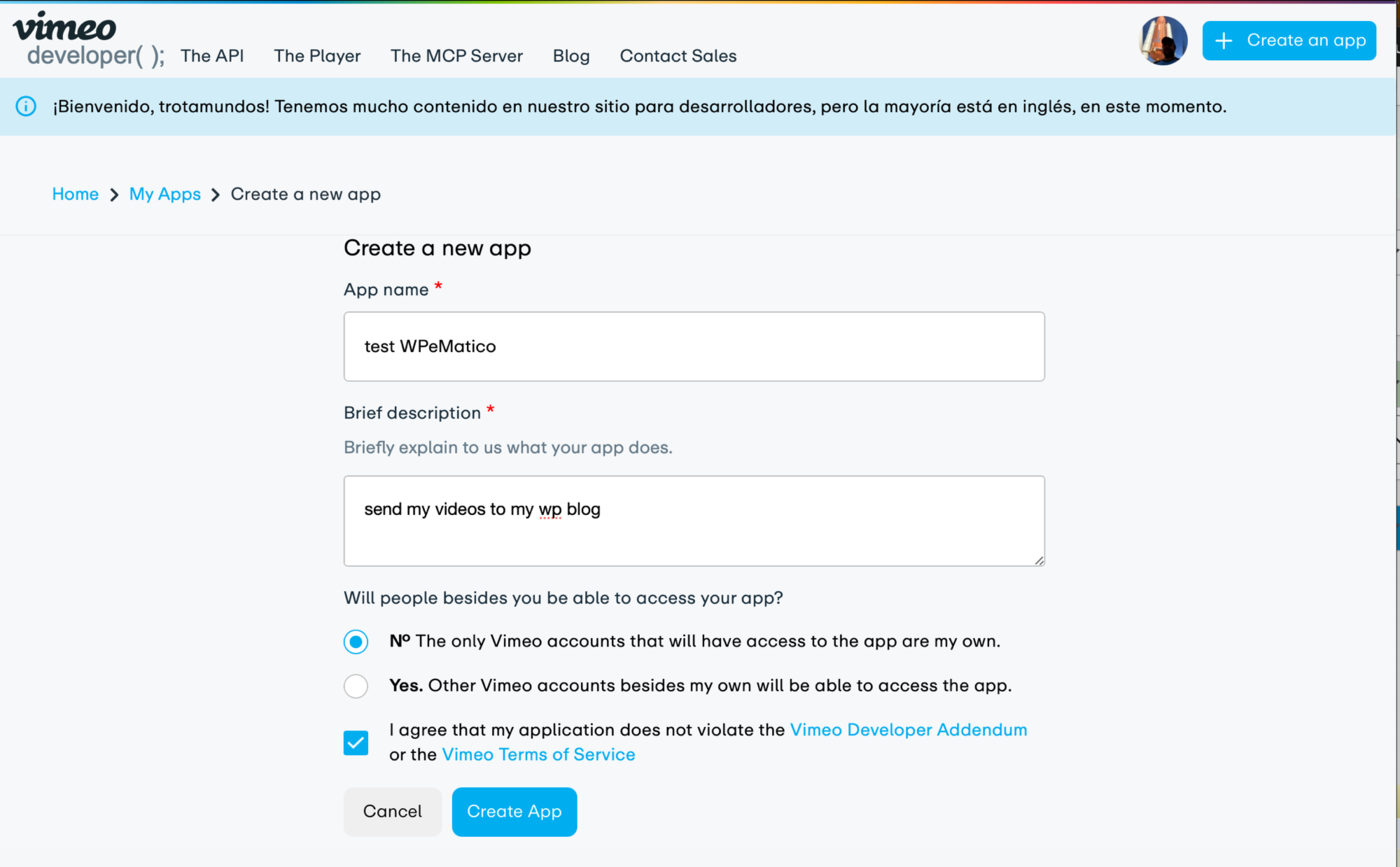
Note: The app name and description do not affect how WPeMatico works. They are simply labels for your reference.
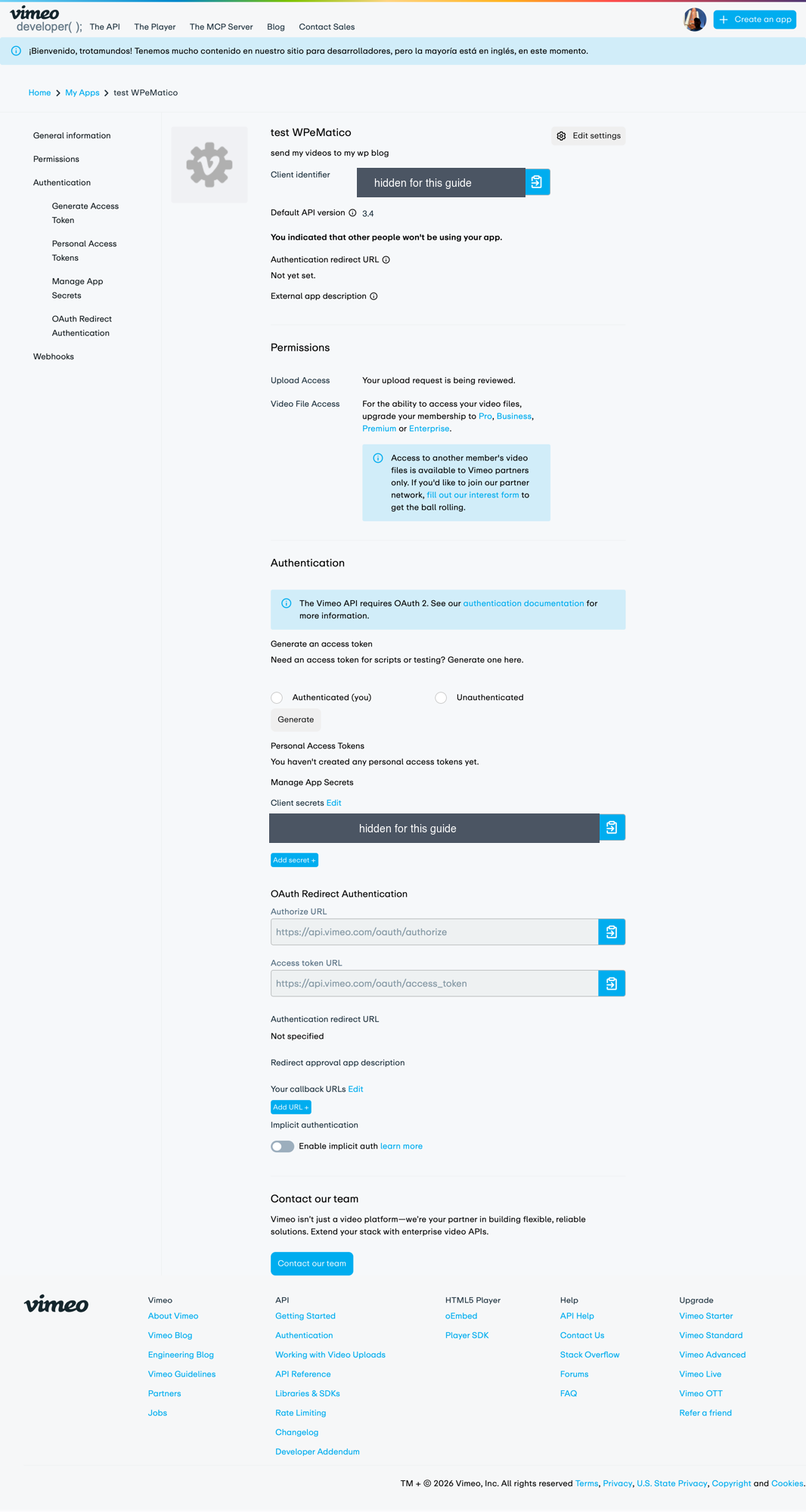
After creating the app, Vimeo will open the application’s page. In the left column, click Authentication.
You may see additional permissions such as Upload Access and Video File Access. These permissions are not required by WPeMatico. WPeMatico reads information about your Vimeo videos and uses the Vimeo player rather than downloading or uploading video files.
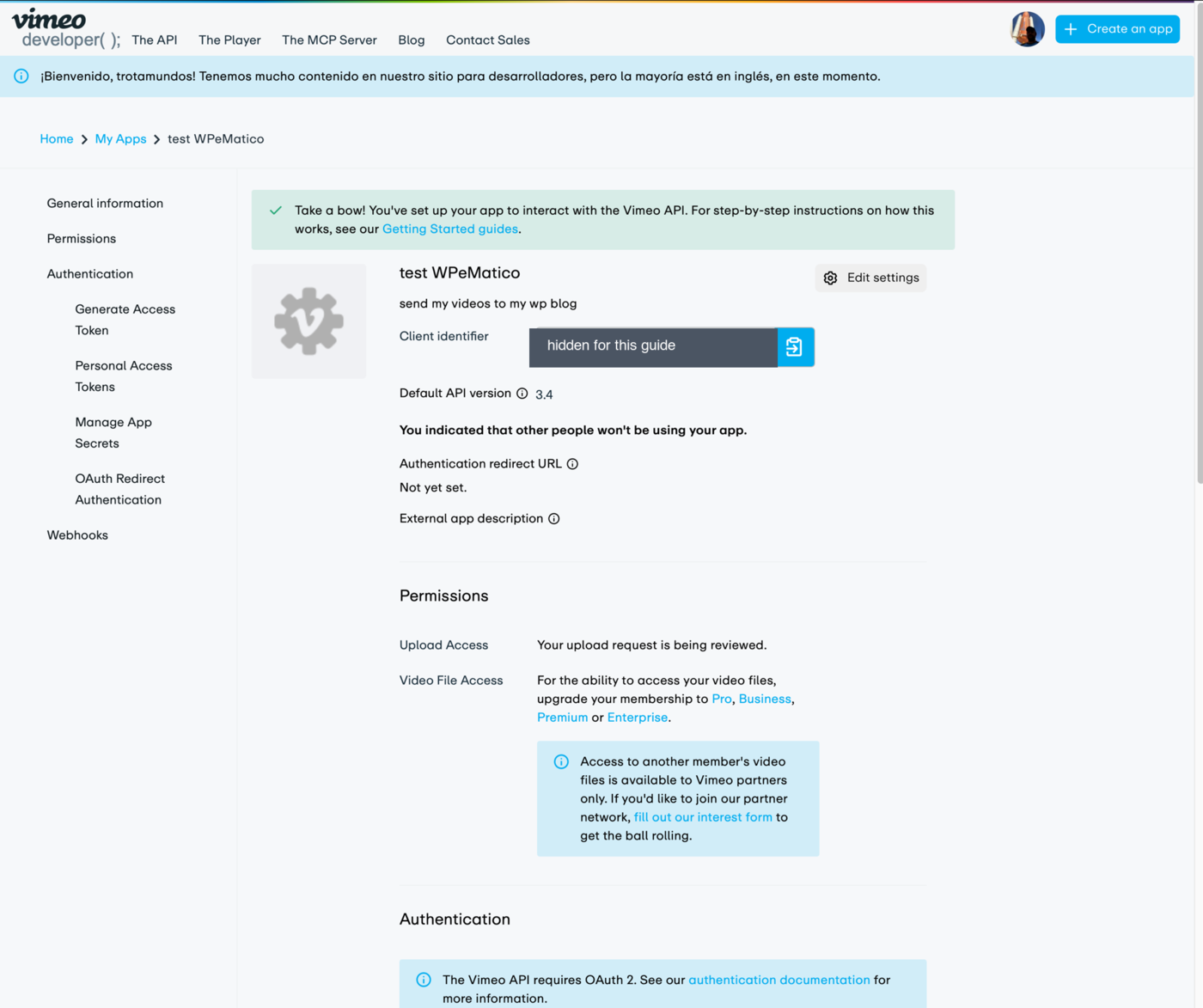
Note: The Client identifier and Client secret are not the access token. WPeMatico only requires the Access token for the current Vimeo API integration.
Under Generate an access token, Vimeo provides two options. Select Authenticated (you).
This creates a personal access token associated with your Vimeo account. It can access your own videos and, when the appropriate permission is granted, your private and unlisted videos.
Do not select Unauthenticated. An unauthenticated token can only access public data and cannot access private videos.
After selecting Authenticated (you), Vimeo displays the available scopes. WPeMatico requires the Public scope to read published videos.
If you also want WPeMatico to retrieve your own private and unlisted videos, enable the Private scope.
The other permissions are not required. Leave options such as Create, Edit, Delete, Upload, Video Files, Stats, Webhooks, and other unrelated scopes disabled.
- Public — Required to access published Vimeo videos.
- Private — Optional. Enable it if you want to retrieve your own private and unlisted videos.
- Everything else — Leave disabled because WPeMatico only needs to read video information.
Important: The Private scope is required for WPeMatico’s Include private and unlisted videos option to work.
After selecting the required scopes, click Generate.
The new token will appear in the Personal Access Tokens section. If you enabled both Public and Private, the token should show the corresponding scopes.
Copy the complete token and keep it secure. You can return to this page later to manage or delete the token.
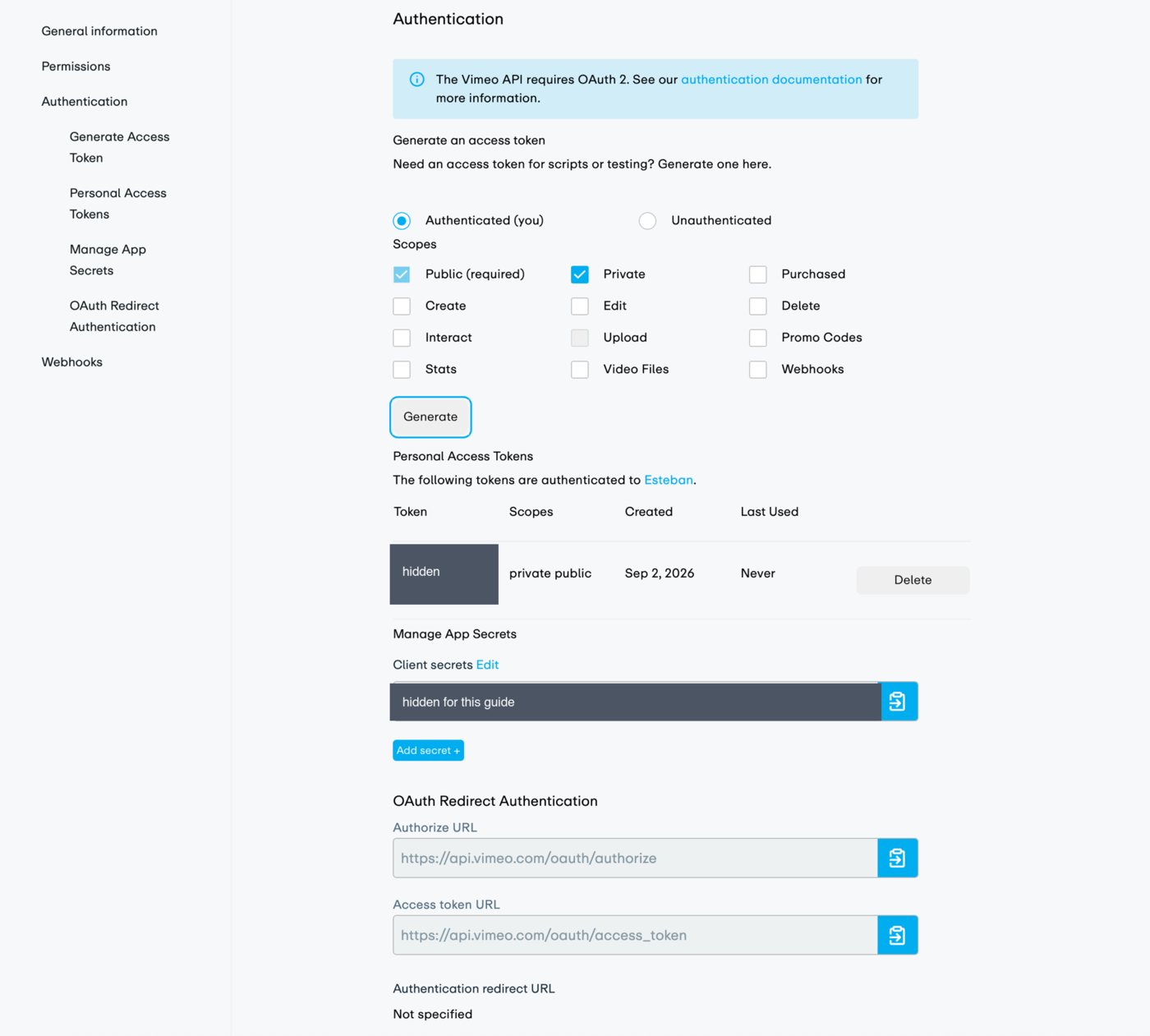
Security warning: Anyone who obtains your access token may be able to access the Vimeo data allowed by its scopes. If the token is exposed, delete it from Vimeo and generate a new one.
In your WordPress administration area, go to WPeMatico → Settings → Professional and open API Keys.
If you do not see the API Keys section, first check Enable “API Keys” feature on that same tab and save the settings.
Paste the Vimeo token into the Access token field and click Test token before saving the settings.
WPeMatico will verify the token and determine which permissions are available.
- Token works and can read private videos — The Public and Private scopes are available.
- Token works but only reads public videos — The Private scope was not enabled when the token was created.
If everything is correct, click Save settings.
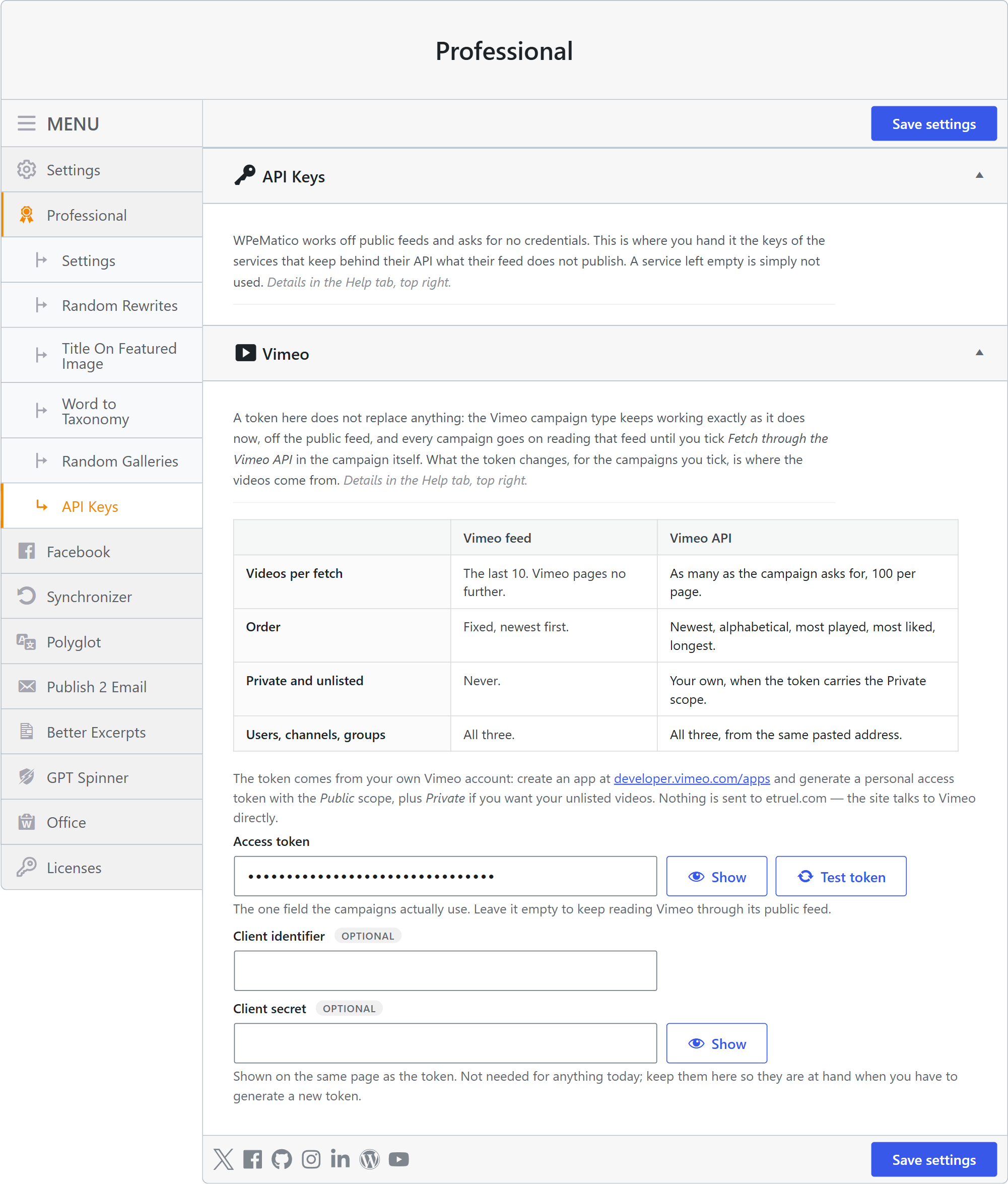
Note: The Client identifier and Client secret fields can remain empty. The Access token is the credential used by WPeMatico.
Saving the access token does not automatically change existing campaigns. Each campaign continues using its Vimeo feed until you enable the API option.
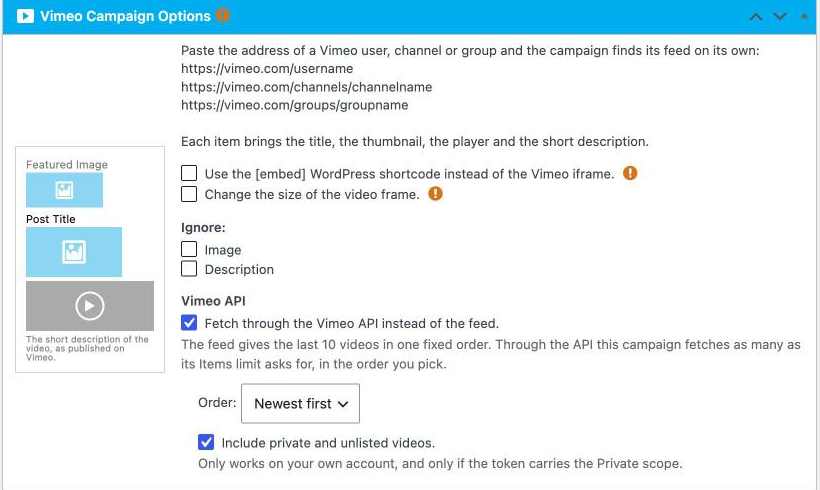
Open your Vimeo campaign and locate Vimeo API at the bottom of the Vimeo Campaign Options section.
Enable Fetch through the Vimeo API instead of the feed.
Once enabled, additional options become available, including:
- Order — Choose how videos are ordered, such as newest first, alphabetical, most played, most liked, or longest first.
- Include private and unlisted videos — Allows WPeMatico to retrieve your own private and unlisted videos when the token includes the Private scope.
The number of videos retrieved is controlled by the campaign’s Items limit. The API supports up to 100 items per request and can retrieve additional results through pagination.
If a Vimeo API request fails, WPeMatico records the error in the campaign log and the campaign continues running without publishing invalid results.
- Vimeo rejected the token: The token may have been deleted, entered incorrectly, or copied incompletely. Generate a new token and add it again to WPeMatico.
- No such user, channel, or group: Check that the Vimeo address configured in the campaign exists and is accessible.
- Rate limit reached: Vimeo limits API requests within a rolling period. If this happens frequently, consider running campaigns less often.
- Private videos do not appear: Make sure the token has the Private scope and that the videos belong to the Vimeo account associated with the token.
- Only 10 videos are retrieved: The campaign is probably still using the standard Vimeo feed. Enable Fetch through the Vimeo API instead of the feed in the campaign settings.
Using a Vimeo Access Token with the Vimeo API gives WPeMatico greater control over how videos are retrieved compared with the standard Vimeo feed.
- Access more than the feed’s standard 10-video limitation.
- Choose different video sorting options.
- Optionally retrieve your own private and unlisted videos.
- Control API usage on a campaign-by-campaign basis.
- Use only the Vimeo permissions required by WPeMatico.
For security, always use the minimum scopes required for your campaigns and regenerate the token immediately if it is ever exposed.