

The Keyword Filters of the Professional add-on decide which feed items become posts by the words they contain. You can skip the items that include some words, or keep only the ones that include them.
Go to WPeMatico → Settings, open the Professional tab, turn on Enable “Keyword Filtering” feature and save the settings. This adds the Keywords Filters box to every campaign.
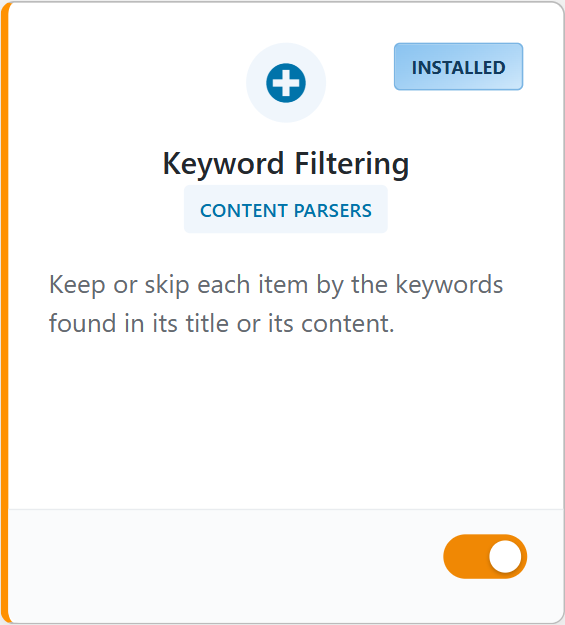
You can also turn it on from WPeMatico → Dashboard, with the switch of the Keyword Filtering card:
The box has two blocks that work the same way:
- Must contain — the item becomes a post only if it has the words.
- Cannot contain — the item is skipped if it has the words.
In each block:
- Check where to look for the words: Search in Title, Search in Content and/or Search in Categories (the categories that come in the feed).
- Choose Any of these words, so one word is enough, or All of these words, so all of them must be in the title, in the content or in the categories.
- Write the words in Words, one per line. They are found as whole words, in uppercase or lowercase.
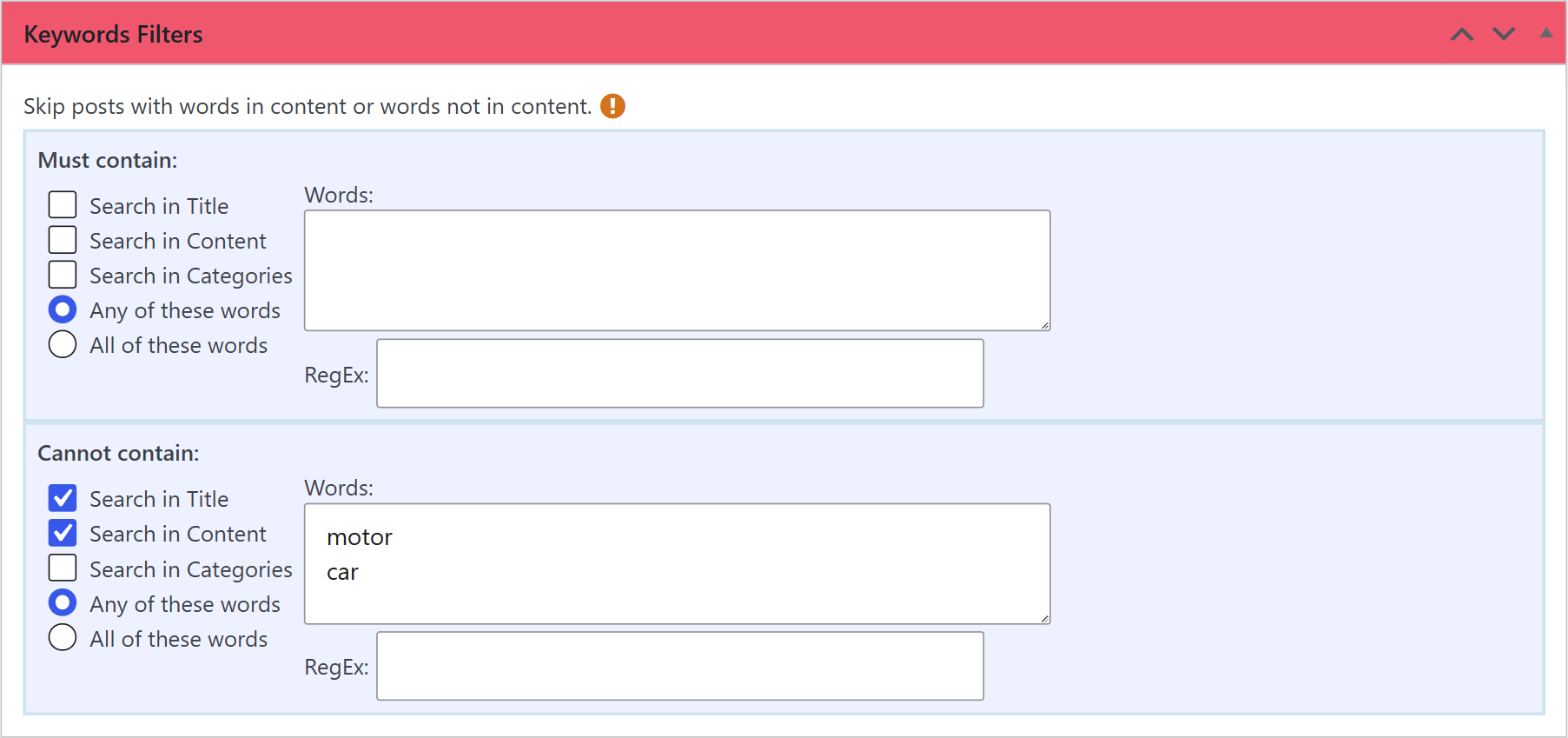
For example, to skip the posts about cars, write motor and car in the Cannot contain block, with Search in Title and Search in Content checked:
Leave the fields empty to turn the filters off.
The RegEx field accepts a regular expression, with its delimiters, for more powerful filters. For example, /(motor|automobile)/i finds “motor” or “automobile”, and the i at the end makes it ignore uppercase and lowercase. If the expression has an error, WPeMatico tells you when you save the campaign.