

WPeMatico add-ons are installed and updated like any other WordPress plugin. The only extra step is to activate your license key, so you receive the updates directly in your WordPress admin. The installation steps are the same for the Fakturo add-ons.
Go to Plugins → Add Plugin, search for WPeMatico, then click Install Now and Activate. You can also download it from its page on WordPress.org.
WPeMatico has a lot of free features. Give them a try before buying an add-on.
After the purchase, you receive an email with your license keys and the links to download your files. You can always download the latest versions and see your license keys in your account.
- Go to Plugins → Add Plugin and click Upload Plugin.
- Select the zip file of the add-on and click Install Now.
- Click Activate Plugin.
If you can’t upload plugins from your WordPress admin, unzip the files on your computer and upload the folder of each add-on by FTP to /wp-content/plugins/, for example /wp-content/plugins/wpematico_professional/. Don’t upload the zip files themselves.
The WPeMatico add-ons don’t appear in the main list of plugins. You’ll find them in Plugins → WPeMatico Addons, where you can activate, deactivate and update them.
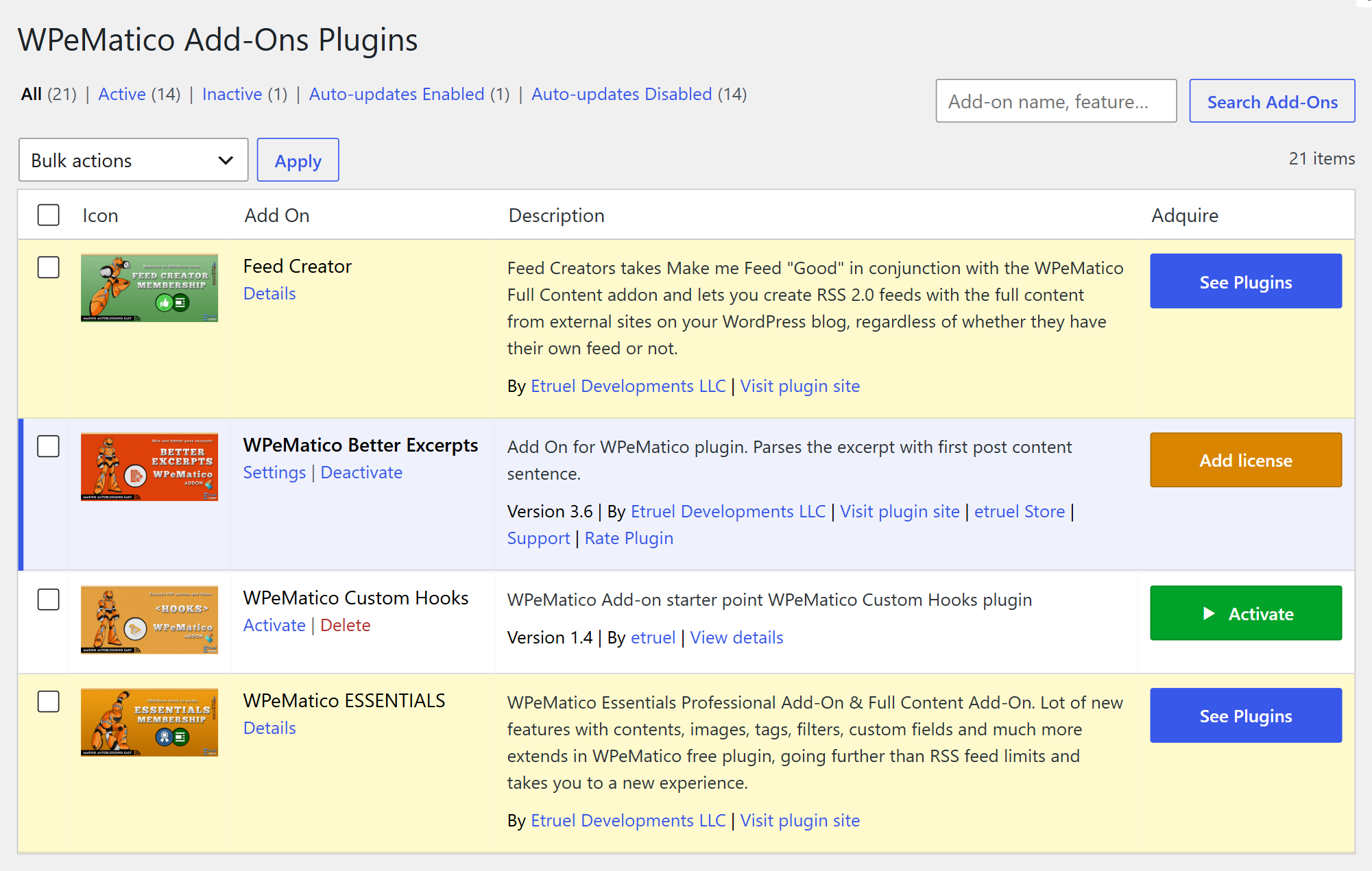
Note: If you prefer to see the add-ons in the main Plugins list, go to Settings → Writing and check See local Addons in plugin list in the WPeMatico section.
- Go to WPeMatico → Settings and open the Licenses tab. There is a box for each add-on you activated.
- Paste the key in the License Key field and click Save settings.
- Click Activate License. The status changes to Valid and shows the expiration date.
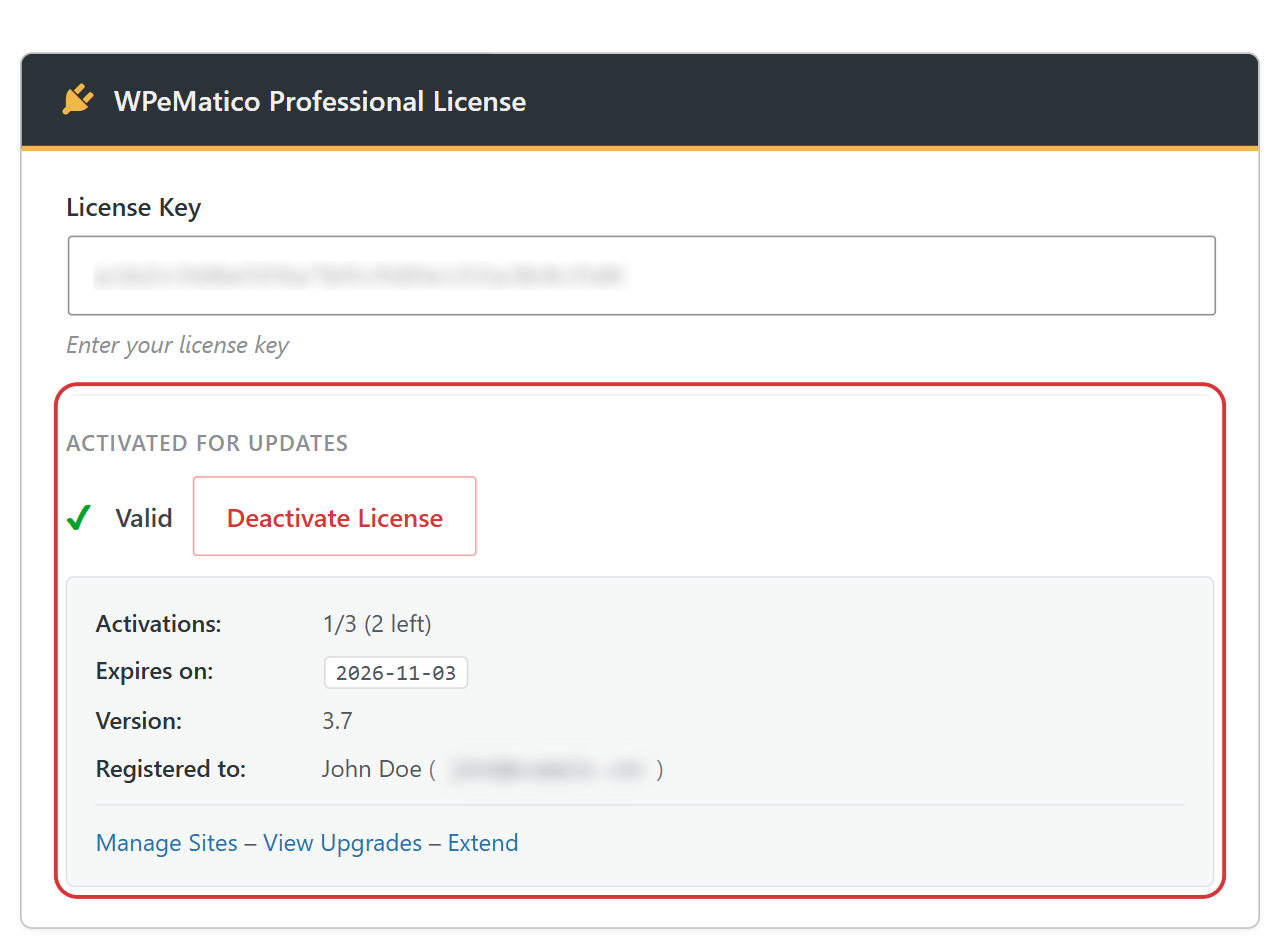
If you aren’t sure which key belongs to each add-on, see How do I activate my license keys?
- From WordPress — with an active license, new versions appear in Dashboard → Updates and in Plugins → WPeMatico Addons. Click Update Now, or enable auto-updates for each add-on on the same page.
- Uploading the zip file — download the latest version from your account, go to Plugins → Add Plugin → Upload Plugin and select the file. WordPress detects that the add-on is already installed and asks you to Replace current with uploaded.
- By FTP — delete the old folder of the add-on in
/wp-content/plugins/and upload the new one.
Note: If your license expired, you can still use the add-on, but you need to renew it to get new versions and support. See your licenses.
Enjoy your autoblog!