

Note: WP Delete Oldest Posts is now WP Delete Post Copies PRO. It’s the same add-on with a new name.
WP Delete Post Copies PRO deletes old posts by date, automatically. It’s an add-on of the free plugin WP Delete Post Copies, so you need the free plugin installed and active.
Be careful: this add-on deletes posts. With the wrong settings you could delete all the posts of your site. Make a backup of your database before you start, and try the Move to Trash option first.
Go to Deletes → Add New Campaign and give it a name. In the Include/Exclude Posts box, choose the post types and the post statuses that the campaign can delete.
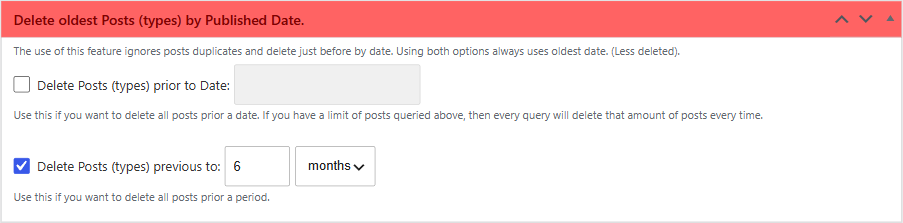
- Delete Posts (types) prior to Date: a fixed date. For example, delete all the posts published before April 30, 2013. The date doesn’t change from one day to the next, so no post published after it is deleted. This is useful to delete a big part of your posts in small groups.
- Delete Posts (types) previous to: a period, in years, months, weeks or days. For example, with 6 months, every time the campaign runs it deletes the posts published 6 months ago or before.
When you use this box, the campaign doesn’t look for duplicates: it deletes only by date. If you check both options, it uses the oldest date, so fewer posts are deleted.
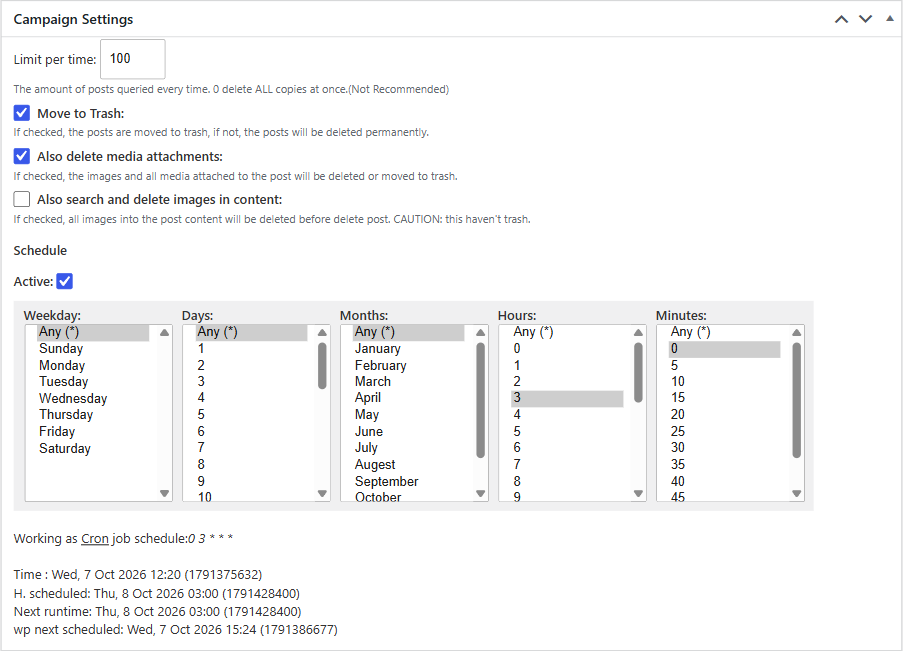
- Limit per time: the maximum number of posts deleted each time the campaign runs. The deletes are done little by little, so your server is not overloaded, and you can spread them over a day, a week or more. With 0 it deletes all of them at once, which we don’t recommend.
- Move to Trash: moves the posts to the trash instead of deleting them permanently.
- Also delete media attachments and Also search and delete images in content: also delete the images of the posts. Careful: the images in the content don’t go to the trash.
- Schedule: check Active and choose the days and times when the campaign runs. It works like the schedule of the WPeMatico campaigns. See How to use Cron Scheduling?
In the Delete only in Categories box, Ignore Categories uses a faster and more efficient query to delete the posts. We recommend it, but if you need to delete posts from only some categories, select them there.
Click Publish to save the campaign.