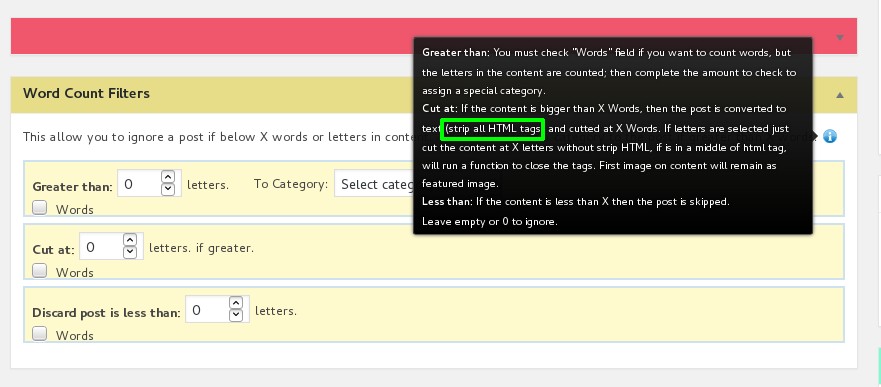

This happens when you cut the content by words. To count words, the Professional add-on needs the plain text, so it removes all the HTML tags of the content, and the images with them. The first image of the item is kept as the featured image of the post.
1. Cut by letters. In the Word Count Filters box of the campaign, leave the Words option of Cut at unchecked. The content is cut at that number of letters but keeps its HTML, with the images, links and format. If the cut falls inside an HTML tag, the tag is closed.

2. Add the image with the post template. If you prefer to cut by words, edit the Post Template box of the campaign and add the {image} tag, which puts the first image of the item in the content:
{image}
{content}
Note: Letters are counted in the HTML code of the content, so the post will look shorter than the number you set.