

Most websites describe each article with meta tags in the head of the page: the title, the URL, the image, the date and more. The Full Content add-on reads them and lets you use them as variables in your posts. They are also useful when a site loads its content with JavaScript and the add-on can’t get the article.
- Go to WPeMatico → Tools and open the Full Content tab.
- Click Test Url, paste the address of an article of the site you want to use and click Preview.
- Open the Meta data tab of the result. It lists each variable with its value for that article.
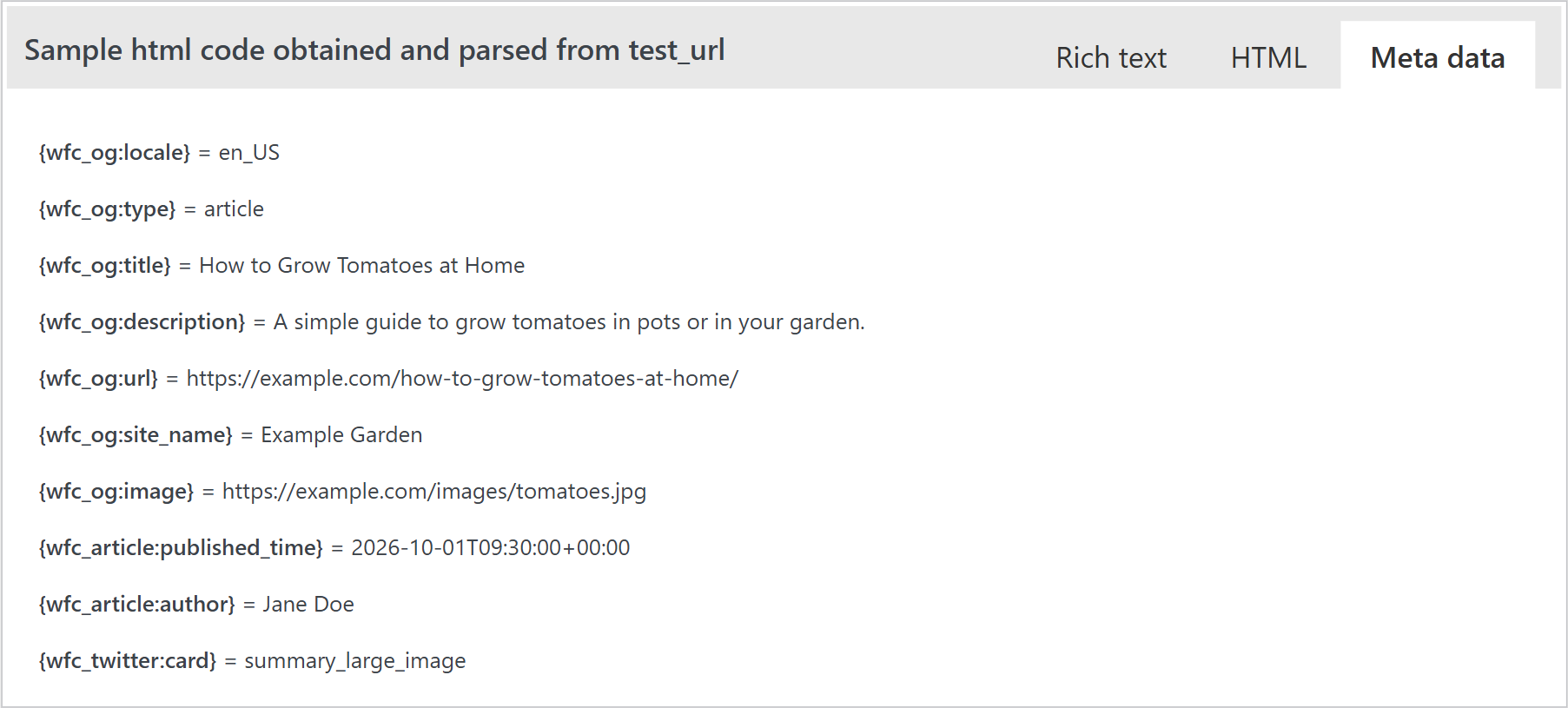
The variables have the form {wfc_ + the name of the meta tag + }, for example {wfc_og:url} or {wfc_og:image}.
Note: Only the meta tags with a colon in their name, like og:, twitter: or article:, become variables.
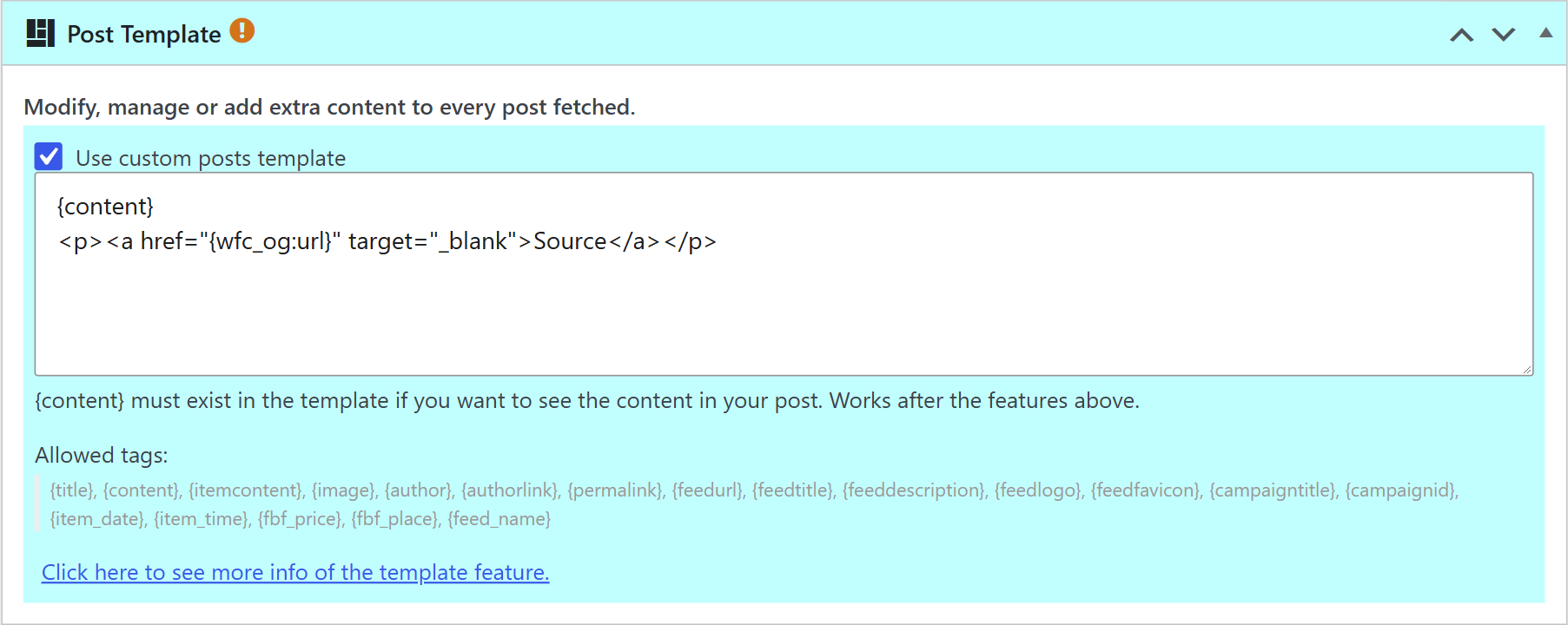
Edit the campaign and check Enable Full Content in the Full Content Options box: the variables only get their values when the campaign uses Full Content. Then, in the Post Template box, check Use custom posts template and add the variables where you want. For example, to add a link to the original article at the end of each post:
{content}
<p><a href="{wfc_og:url}" target="_blank">Source</a></p>
If a page doesn’t have that meta tag, the variable is left empty.
With the Professional add-on you can also save the meta tags as custom fields of each post. Add a field in the Custom Fields box of the campaign, for example with the name source and the value {wfc_og:url}. See how in How to use Custom Fields?