

The Post Template of each WPeMatico campaign lets you change the content of every post before it is saved: add text, a link to the source, the author, images, shortcodes or any data of the feed. It also answers questions like:
- How to add all the fetched enclosures or media files to the post content?
- How to add a gallery with all the images of the post?
- How to add shortcodes automatically to the fetched content?
Edit the campaign and, in the Post Template box, check Use custom posts template. Then write the template in the text area.
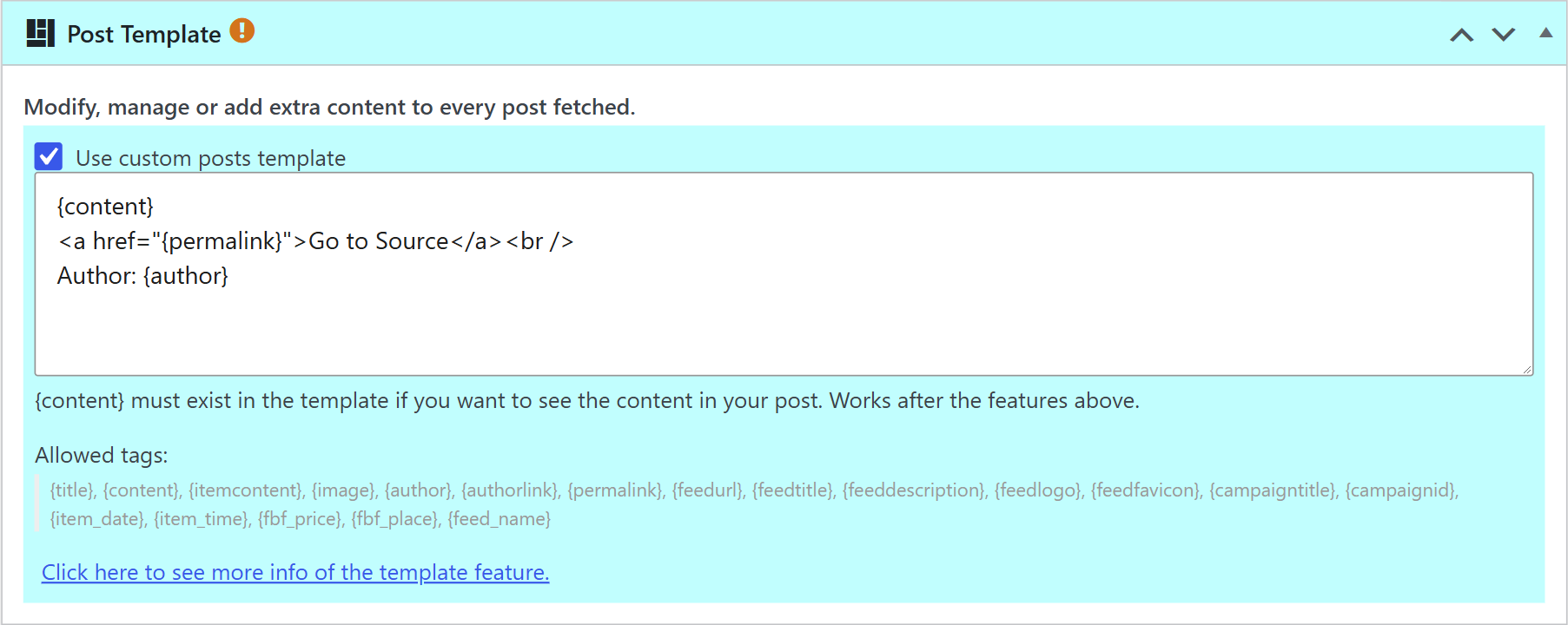
Note: {content} must be in the template if you want the content of the item in your post. The template is applied after the other options of the campaign.
- {title}: the title of the item.
- {content}: the content of the item.
- {itemcontent}: the description of the item.
- {image}: the featured image, inside the content.
- {author} and {authorlink}: the author of the item and its link, if it exists.
- {permalink}: the address of the original article.
- {feedurl}, {feedtitle}, {feeddescription}, {feedlogo} and {feedfavicon}: the address, title, description, logo and favicon of the feed.
- {campaigntitle} and {campaignid}: the title and ID of the campaign.
- {item_date} and {item_time}: the date and time of the item.
Some add-ons add their own tags. For example, Professional adds {feed_name}, the name you give to each feed, and Full Content adds the meta tags of the source page (see How to use the Full Content source metatags?). The box shows the list of tags you can use with your add-ons.
A link to the source and the author at the end of every post:
{content}
<a href="{permalink}">Go to Source</a><br />
Author: {author}
You can also use any WordPress shortcode, and WordPress processes it. For example, a gallery of three columns with all the images of the post, before the link to the source:
{content}
[gallery link="file" columns="3"]
<a href="{permalink}">Go to Source</a>
To show all the videos or audios of the post, use the playlist shortcode. Its attributes change the output, for example:
[playlist type="video" style="dark"]
Read more about it in the WordPress documentation. You can also use the shortcodes of other plugins to show galleries or playlists in other ways.