

The Word Count Filters of the Professional add-on count the letters or words of the content of each item, and with that number they can assign a category to the post, cut its content or skip it.
Enable the Feature
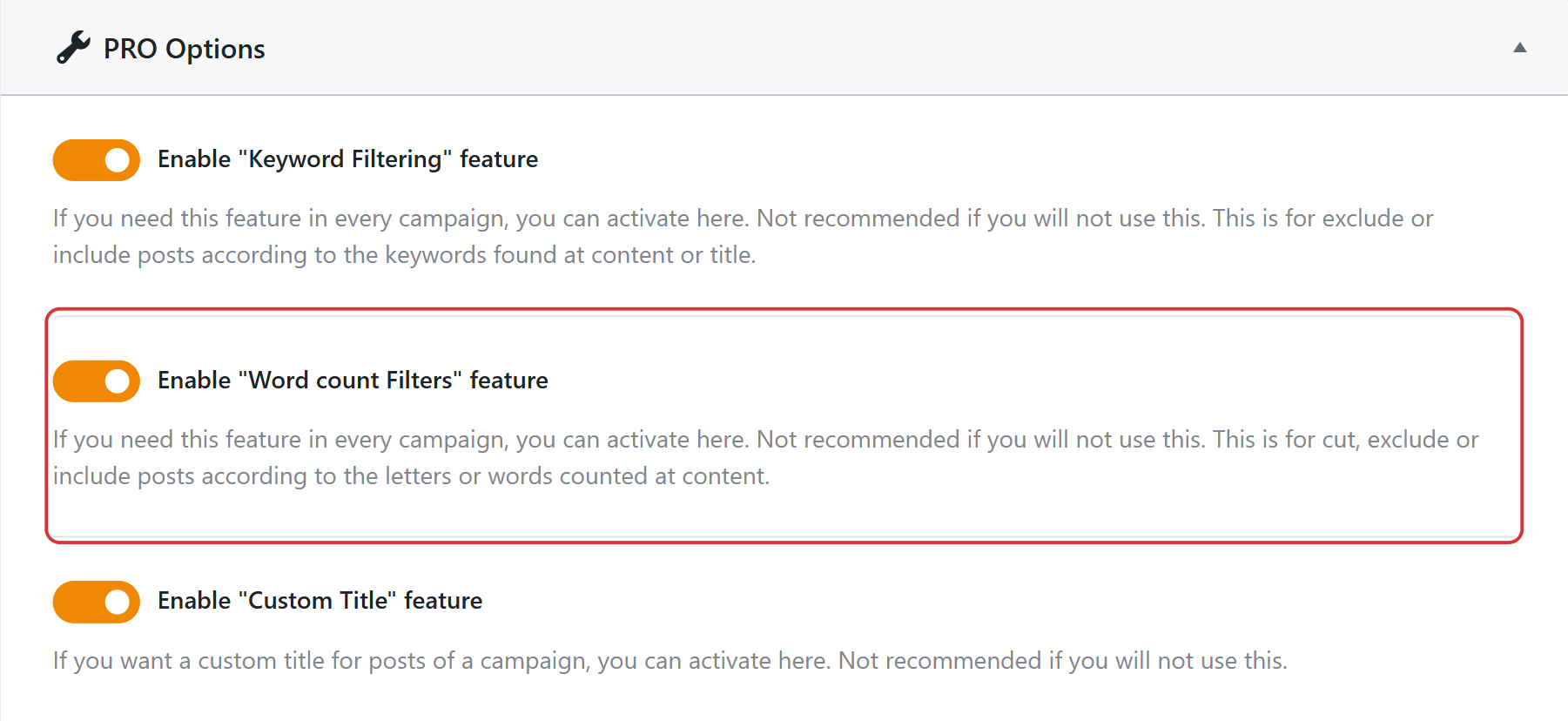
Go to WPeMatico → Settings, open the Professional tab and turn on Enable “Word count Filters” feature. Then save the settings. This adds the Word Count Filters box to every campaign.
Set the Filters in the Campaign
Edit the campaign and fill in the filters you need in the Word Count Filters box. In each one, check Words to count words, or leave it unchecked to count letters. Leave a filter in 0 to turn it off.
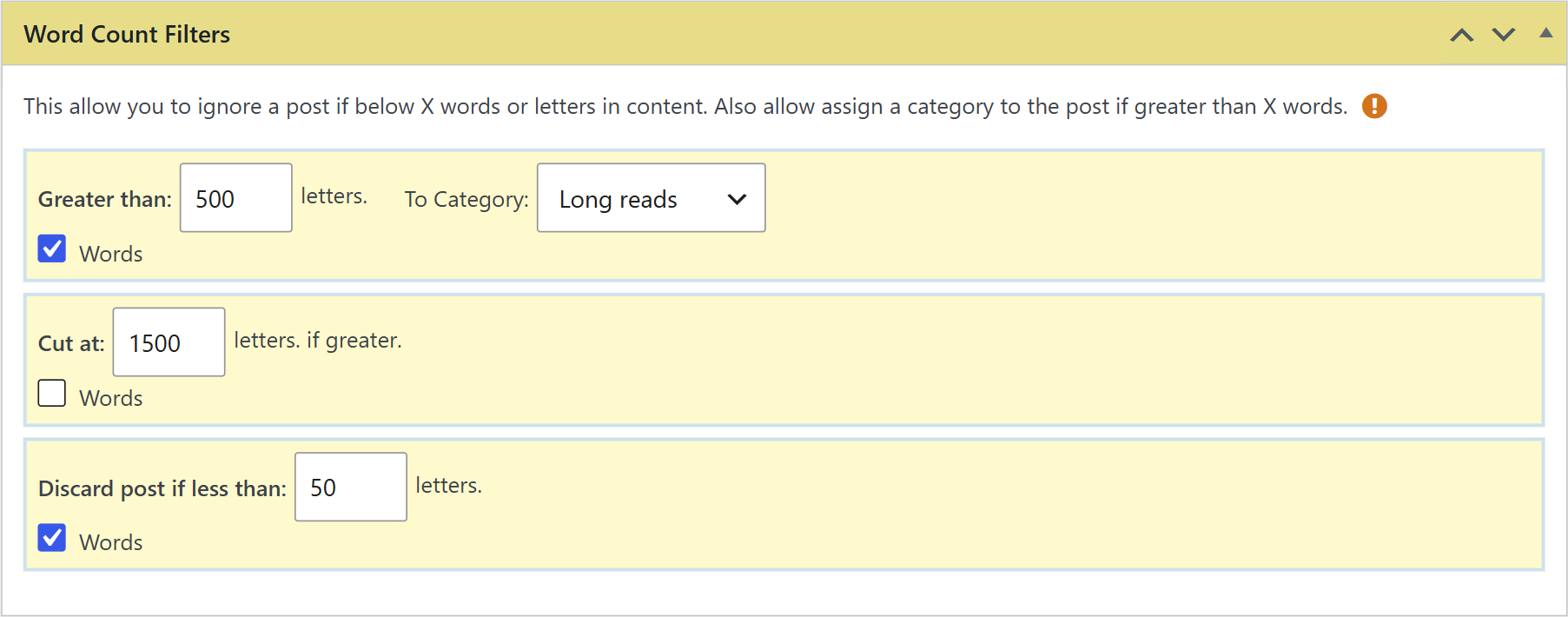
- Greater than … To Category — if the content has that number of letters or words or more, the post gets the category you choose. For example, a “Long reads” category for the posts with more than 500 words.
- Cut at — if the content is longer, it is cut at that number of letters or words. With Words, the content becomes plain text, without HTML tags or images, and ends with “…”. With letters, it keeps its HTML and the tags are closed after the cut. In both cases, the first image is kept as the featured image.
- Discard post if less than — if the content has fewer letters or words, the item is skipped and no post is created.
Note: Letters are counted in the HTML code of the content, so the tags and their attributes count too. To work with the visible text, use words.
Related FAQs